Robot Vacuum Not Connecting to Alexa or Google Home?
Short answer
First confirm the robot works in its own app. Then verify the correct integration and account in Alexa or Google Home. A cloud-linking fault does not automatically require changing Wi-Fi bands or resetting the robot.
Find which connection failed
The short answer: check the robot in its own app first, then the voice-assistant link, then the account behind that link. This order runs from the cheapest check to the most involved. It is a practical way to narrow the problem, not a sequence that any manufacturer prescribes.
Roborock, ECOVACS and iRobot each begin with the robot itself. Roborock asks you to make sure the robot is added and online in the Roborock or Mi Home app. ECOVACS asks you to confirm the DEEBOT is connected and online in ECOVACS HOME. iRobot asks you to confirm that Wi-Fi setup is complete. If the robot is offline in its own app, work through robot Wi-Fi troubleshooting first.
If the app works but the voice assistant cannot find the robot, investigate the integration and the linked account. Record the exact message: account authorization failed, no devices found, device offline or unsupported command. These are different stages, and each one points to a different check.
What changes by model
The brand decides which app, skill or service you link. Each row condenses that manufacturer’s own steps, and the Source column links to the page it came from.
| Brand | Assistant | Steps as the manufacturer describes them | Source |
|---|---|---|---|
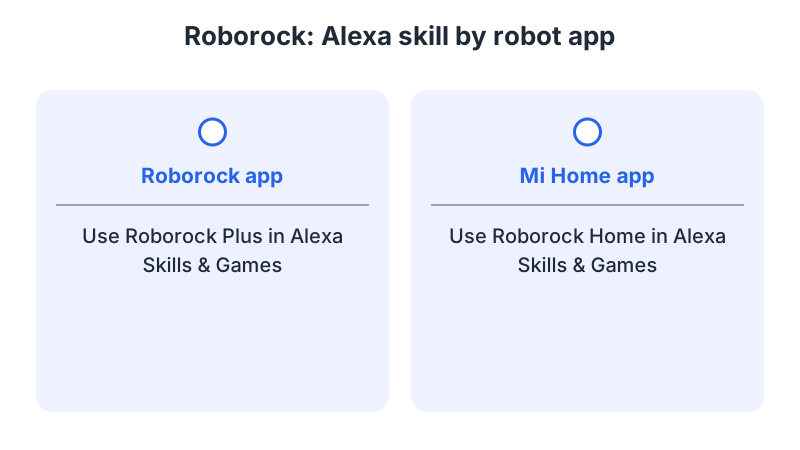
| Roborock (Roborock app) | Alexa | Skills & Games, search Roborock Plus, link the Roborock app, then discover devices | Roborock Alexa guide |
| Roborock (Mi Home app) | Alexa | Skills & Games, search Roborock Home, link the Mi Home app, then discover devices | Roborock Alexa guide |
| iRobot (HOME app) | Alexa | Menu, Smart Home, Voice Assistants, Amazon Alexa; tap Link; the HOME app shows whether linking succeeded | iRobot UK article |
| iRobot (HOME app) | Google Home | Menu, Home control, +, Set up device, Have something already set up, search for iRobot, choose iRobot Smart Home, sign in with the iRobot HOME account | iRobot article |
| ECOVACS (DEEBOT) | Alexa | Confirm the DEEBOT is online in ECOVACS HOME, enable the DEEBOT skill under Skills & Games, log in, choose the DEEBOT, then run Discover Devices | ECOVACS Alexa guide |
| ECOVACS (DEEBOT) | Google Home | +, Set Up Device, Works with Google, search for ECOVACS, enter the ECOVACS account credentials, choose the robotic vacuum cleaner, then choose home and room | ECOVACS Google Home guide |
| Samsung SmartThings | Alexa | Sign in to the Alexa app, open the SmartThings menu, choose Voice assistant, select Amazon Alexa, allow the connection, then tap the link option | Samsung SmartThings guide |
| Samsung SmartThings | Google Assistant | Sign in to the Google Home app, open the SmartThings menu, choose Voice assistant, select Google Assistant, continue, then authorise the connection | Samsung SmartThings guide |
Roborock’s guide gives separate skills for each app: Roborock Plus for the Roborock app and Roborock Home for Mi Home. Pick the skill that matches the app where the robot already works. If Alexa does not show a discover devices option, the same guide says to go to settings and discover manually, then check the devices list for the robot. Once it appears there, the guide says Alexa smart speakers can start and stop cleaning.
Google’s third-party linking page says Matter-enabled devices can be set up directly in the Google Home app. For a third-party device that is not Matter-enabled, set it up in the manufacturer’s app first. Then, in Google Home, go to Add, then Device, choose Add a different way, search for the device or brand name, select the device’s app, tap Link app or Check for devices, and select your device. Confirm that your model is supported for the integration you chose before you troubleshoot further.
The SmartThings page covers linking the SmartThings account to each assistant. Its Alexa examples cover a dishwasher, an oven and an air conditioner, and its Google Assistant example for a robot vacuum is a stop command. Treat SmartThings as a route separate from the robot’s own skill, and check the robot in the SmartThings app before blaming the voice assistant.
Alexa: verify the app and account first
Check which app actually owns the robot, then select the integration named by that manufacturer’s instructions. Link the account that contains the robot and run the documented discovery step. Do not enter a different household member’s credentials merely because the brand name matches.
Each brand starts from a different point. ECOVACS asks you to confirm that the DEEBOT is connected and online in ECOVACS HOME before you enable its skill, then to log in on the ECOVACS login page that Alexa opens. iRobot’s route first confirms that Wi-Fi setup is complete, then opens the Alexa app or an Amazon sign-in page. iRobot’s article adds that both the robot and the app must run current software for Alexa to work. For Roborock, the discovery step is the one described above.
If discovery succeeds but a command fails, test a basic command first, using the name the assistant lists for the device. Then compare the command with the model’s supported command list in the manufacturer’s material. A refused command is not, by itself, a Wi-Fi outage.
Google Home: reconnect the right service
To change an existing link, Google’s control page gives this path: tap your profile picture or initial, open Home settings, choose Works with Google, select the partner service, and tap Reconnect account. Read the confirmation screen before you unlink anything. Reconnect the intended service before you delete the robot from its own app.
If a device is missing after a change in the partner app, resync the linked devices in the Google Home app. The same page gives a voice command for syncing all devices. It also warns that syncing several devices at once can produce a timeout error.
The page explains how to rename a device: open Home, then All devices, touch and hold its tile, open Settings, tap Name, enter a new name, and tap Save; the Device information step applies only to Google smart home devices. It advises against numbers, special characters and room names. Check whether the device tile works in Google Home before troubleshooting the speaker’s wording.
Avoid broad changes with unrelated consequences
Before unlinking a service, read the confirmation screen and check which devices will be affected. Do not factory-reset the vacuum, change router security or force every household device onto one Wi-Fi band solely because cloud linking failed.
If authorization still fails, record the robot model, app, integration name, region and exact error for support. Never include passwords or access tokens in screenshots sent for diagnosis.
FAQ
Does the robot have to work in its own app first?
The sources treat the robot’s own app as the first step. Roborock asks you to make sure the robot is added and online in the Roborock or Mi Home app first. ECOVACS asks you to confirm that the DEEBOT is online in ECOVACS HOME before you enable its Alexa skill. Google’s third-party page says a non-Matter device is set up in the manufacturer’s app first, while Matter-enabled devices can be set up directly in Google Home.
What if Google Home shows the robot but voice commands fail?
Google’s control page says to resync linked devices in the Google Home app, and it gives a voice command for syncing all devices. It also explains how to rename a device. Check that the device tile works in Google Home first, then rename or resync as the page describes.
Does a failed link mean I should change the Wi-Fi band or reset the robot?
Use the linking instructions for your app and assistant. Roborock and ECOVACS both ask you to confirm the robot is online in their own app before linking. If the robot is offline in its own app, follow its Wi-Fi troubleshooting instead.
Not sure which guide fits? Use the symptom checker
Checked against
Models checked: Roborock Alexa skills for the Roborock app and Mi Home (Roborock PDF guide); iRobot HOME app with Amazon Alexa (iRobot UK article); iRobot HOME app with Google Home (iRobot article); ECOVACS DEEBOT Alexa skill (ECOVACS US article); ECOVACS DEEBOT with Google Home Works with Google (ECOVACS AU article); Samsung SmartThings voice assistant linking for Alexa and Google Assistant; Google Home third-party linking and resync (Google Home help). These are document checks, not hands-on tests.
- Roborock Alexa linking guide (manual; accessed )
- iRobot UK: Amazon Alexa linking (support; accessed )
- iRobot: Google Home linking (support; accessed )
- ECOVACS: Do robot vacuums work with Alexa (article; accessed )
- ECOVACS: Set up DEEBOT with Google Home (article; accessed )
- Samsung: set up a voice assistant on home appliances with SmartThings (support; accessed )
- Google Home third-party account linking (support; accessed )
- Google Home control and resync (support; accessed )