Robot Vacuum Won't Connect to Wi-Fi? Check Model and Setup
Short answer
Find the exact robot model and its supported Wi-Fi band before changing router settings. For a previously connected iRobot robot that is now offline, confirm power, then use the app's reconnect path. This guide recommends trying the applicable connection checks before a factory reset, except when the app's ownership-change procedure requires one. During first setup, follow the correct app's prompts and check the phone permissions it requests.
Robot vacuum won't connect to Wi-Fi: check the setup stage
-
Check 1
Does a robot that worked before now show offline in the app while its buttons still respond?
Yes
For previously connected iRobot robots, use Reconnect or Change Product Wi-Fi and re-enter the password. Our advice: try this before a factory reset.
No
-
Check 2
Is the network name you want the robot to join missing from its setup list?
Yes
Check your model in the band table. Some iRobot and Tapo models are 2.4 GHz only. For DEEBOT, make sure the router's 2.4 GHz band is enabled.
No
-
Check 3
Does setup reject the network name or password you entered?
Yes
Retype the password by hand in the official app. For iRobot, special characters in the name or password can cause setup errors.
No
-
Check 4
Does the app say the robot is registered to another account?
Yes
For iRobot, follow the app's change-ownership prompts. Our advice for other brands: record the error and contact support.
No
None of these?
Our advice: if it still fails, record the app error, Wi-Fi status and exact model for support; avoid a factory reset unless the model's procedure calls for it.
Identify which connection failed
A robot that has never appeared in its setup app needs a different check from one that was paired and later went offline. Record the exact model, the app and screen you are on, and any error shown. The order below is this guide’s suggested starting point, not a ranking of cause frequency or a sequence prescribed for every brand; use only the checks supported for your robot:
- Band. The network you want is missing from setup, or the robot cannot join it. Check the band table.
- Typing. Setup rejects the network name or password. Retype the password by hand in the official app.
- Phone. The phone is on a different network from the one you want the robot to use, or Bluetooth or location permission is off.
- Previously paired. The robot worked in the app before and now shows offline.
- Account. The app says the robot is registered to another account.
These observations alone do not establish a Wi-Fi hardware fault. This guide recommends trying the applicable connection checks before a factory reset. For an iRobot account-ownership error, follow the app’s ownership-change procedure: the setup article says this requires a factory reset.
Check the band before you change the router
Band support depends on the model, and two models from the same brand can differ. iRobot’s Roomba Home App setup article says some robot models do not support 5 GHz and may need the 2.4 GHz network. Its table gives the band for each Roomba family, and the comparison table below repeats those rows with their sources.
Apply a row only to the model it names. Do not carry a band from one brand or model over to another. For DEEBOT, ECOVACS FAQ 775 says to temporarily ignore the 5 GHz signal when the router broadcasts two signals. FAQ 949 says to temporarily disable 5 GHz or ensure the phone is connected to the 2.4 GHz network.
Setup fails for a robot that has never connected
If the robot has never completed setup, work through the checks below that match your screen. Each one comes from the brand’s own page.
- Phone network. iRobot says the phone and robot should be on the same network during setup, and that the network can be changed later. Tapo’s FAQ requires the phone or tablet to be connected to the home Wi-Fi network. eufy’s troubleshooting page asks you to put the phone on a 2.4 GHz network first.
- Permissions. iRobot’s app may prompt for Bluetooth and Location Services; the setup article also says to enable Precise Location. eufy asks you to enable location for eufy Clean. Ecovacs asks you to enable Bluetooth on the phone.
- Password entry. iRobot recommends typing the password rather than pasting it, and warns that special characters in the name or password can cause setup errors. Tapo’s step asks you to select the home network and enter its password. eufy’s Android guide, which uses the RoboVac G30 Edge as its example, has you type the Wi-Fi password in.
- Router settings for DEEBOT. Ecovacs says the network name must stay visible during and after setup. It says MAC address filtering should be turned off before setup, and that VPN and proxy servers are not supported.
- Pairing mode. On Tapo, if the buttons do not blink white, hold the two buttons for 10 seconds. On eufy, hold the start button on top for 10 seconds or more until you hear a beep or the “reset WiFi” voice alert. For the L70, L50 and L60 series, eufy instead says to hold both top buttons until the Wi-Fi reset voice alert is heard; it gives no duration for these series. If Bluetooth cannot find a DEEBOT, Ecovacs says to short press the fixed-point cleaning key and the reset key as the prompts indicate.
For a RoboVac, eufy’s light sequence is a slow flashing light for ready to connect, a quick flashing light for connecting, and only a solid blue light for connected.
For a phone hotspot route, iRobot’s article lists the 110, 410, 510, 570, 710 and 770 series and gives a simple network name and password without special characters as the condition. eufy suggests connecting the vacuum through the phone’s hotspot to check whether the fault lies with the vacuum or the router.
A robot that worked before shows offline
A robot that responds to its buttons is powered, but that does not confirm it is online. iRobot’s cloud article separates a robot that was previously connected from one that has never had a cloud connection. The steps below apply to the first case. For a robot that never connected, use the setup checks above.
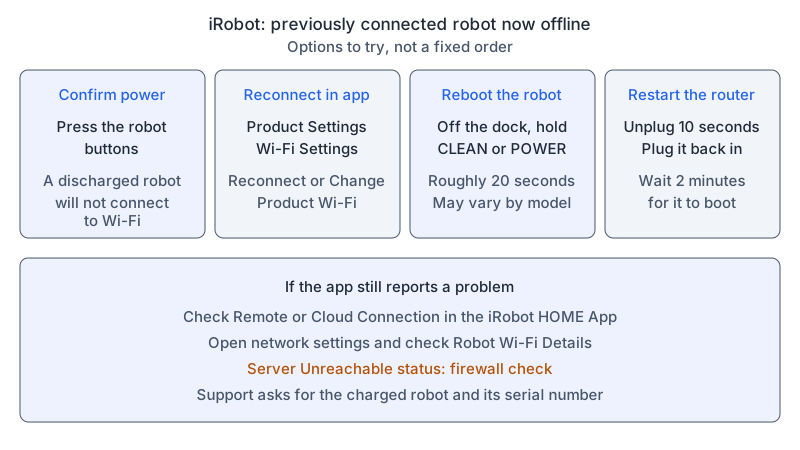
These four steps come from that one iRobot article. They are options to try, not a fixed order that all brands follow.
- Confirm power. iRobot says a dead or fully discharged robot will not connect to Wi-Fi, and asks you to press the robot’s buttons to confirm it has power. If the battery is low, the charging error guide covers that case.
- Reconnect. In the iRobot app, go to Product Settings > Wi-Fi Settings > Reconnect or Change Product Wi-Fi, then enter the Wi-Fi password to re-establish the connection.
- Reboot the robot. With the robot off the dock, press and hold the CLEAN or POWER button for roughly 20 seconds. The article notes that the count may vary for some models. For the general reset procedure, see the reset guide.
- Restart the router. Unplug it for 10 seconds, plug it back in, and wait 2 minutes for it to boot. A router restart briefly interrupts other devices, so plan for that.
If the app still reports a problem, check the Remote or Cloud Connection within the iRobot HOME App. iRobot’s app-loading article says to confirm the robot is connected to the internet, then open the app’s network settings and check the Robot Wi-Fi Details. A Server Unreachable status calls for a firewall check. When you contact support, iRobot asks for the charged robot and its serial number.
What changes by model
The table gives one row per model family or brand line. Each row links to the page its cells come from.
| Brand and model | Wi-Fi band | Setup detail | Source |
|---|---|---|---|
| iRobot Roomba Mini, 200/2000, Plus 405, Plus 500, Max 705, Max 715, Max 775 | 2.4 GHz and 5 GHz | Setup through the Roomba Home App | iRobot setup article |
| iRobot Roomba 100/1000, 110/115, Plus 415, Plus 510, Plus 570, Plus 615, Plus 675, Plus 875 | 2.4 GHz only | Phone hotspot route listed for the 110, 510 and 570 series | iRobot setup article |
| Tapo robot vacuum, with RV50/RV30 Max/RV20 Max and RV10/20/30 series named in the steps | 2.4 GHz only | Phone on the home network; hold two buttons 10 seconds if the buttons do not blink white | Tapo FAQ |
| eufy RoboVac; L60 explicitly named for 5 GHz support | Phone on 2.4 GHz during setup; L60 can support 5 GHz | General instruction: hold start at least 10 seconds until a beep or Wi-Fi reset voice alert; for L70/L50/L60, hold both top buttons until the voice alert, with no duration stated | eufy troubleshooting and eufy Android guide |
| ECOVACS DEEBOT line | 2.4 GHz, or a mixed 2.4/5 GHz network | Visible network name; MAC filter off; no VPN or proxy; Bluetooth on | ECOVACS FAQ 775 and ECOVACS FAQ 949 |
iRobot
iRobot’s setup article supplies the model-by-model band table used for the Roomba rows; eufy’s troubleshooting page separately names the L60 as supporting 5 GHz. Its cloud article covers previously connected robots, and its app-loading article covers the Remote or Cloud Connection status.
Tapo (TP-Link)
Tapo’s FAQ states that only 2.4 GHz Wi-Fi is supported. Its requirements list a phone or tablet already connected to the home Wi-Fi network. The FAQ’s power-on step names the RV50/RV30 Max/RV20 Max series and the RV10/20/30 series. Its pairing step is the two-button hold described above.
eufy (RoboVac)
eufy’s troubleshooting page asks for a 2.4 GHz phone connection and notes that the L60 can support 5 GHz. If the steps fail, it asks you to contact support with the eufy Clean account email and a short video of the setup.
ECOVACS (DEEBOT)
Ecovacs’ FAQ pages refer to the DEEBOT line and the ECOVACS HOME App. They describe a 2.4 GHz network, or a mixed 2.4/5 GHz network, and say to ignore the 5 GHz signal of a dual-band router for now. They also cover the visible network name, MAC filtering, VPN and proxy restrictions, and the Bluetooth requirement on the phone.
Frequently asked questions
Can I use one network name for both bands?
ECOVACS FAQ 775 describes support for a 2.4 GHz network or a mixed 2.4/5 GHz network, and says to temporarily ignore the 5 GHz signal if the router broadcasts two signals. FAQ 949 separately says to temporarily disable 5 GHz or ensure the phone is on the 2.4 GHz network. For iRobot models, use the band row that matches your model.
Why does setup reject my password?
iRobot warns that special characters (its examples include !, #, $, % and &) in the network name or password can cause setup errors, and recommends typing the password manually instead of pasting it.
Can I set up the robot through a VPN?
Ecovacs says the DEEBOT network does not support VPN or proxy servers. Turn the VPN off for setup, then check the network name and password again.
Once the robot is online, linking it to a voice assistant is covered in the Alexa and Google guide. For other robot faults, see the robot vacuum troubleshooting hub.
Not sure which guide fits? Use the symptom checker
Checked against
Models checked: Roomba models listed in the Roomba Home App setup article (band table); Previously connected iRobot robots covered by iRobot's cloud and Wi-Fi troubleshooting guide; iRobot HOME App products covered by iRobot's app-loading article; Tapo robot vacuums covered by TP-Link's Tapo Wi-Fi setup FAQ (RV10/20/30, RV20 Max, RV30 Max and RV50 series named in its steps); RoboVac models covered by eufy's Android setup guide and general troubleshooting page (G30 Edge example, L60, L70/L50/L60 series); DEEBOT line covered by two ECOVACS HOME App connection FAQs. These are document checks, not hands-on tests.
- iRobot: Setting up your Robot with the Roomba Home App (support; accessed )
- iRobot: Cloud and Wi-Fi Connectivity Troubleshooting Guide (support; accessed )
- iRobot: Sections of the iRobot Home App Do Not Load (support; accessed )
- How to Connect Your Tapo Robot Vacuum to Your Wi-Fi Network (support; accessed )
- General troubleshooting when RoboVacs do not connect to WiFi (support; accessed )
- How to connect RoboVac to WiFi? (For Android) (support; accessed )
- How to connect your DEEBOT with the ECOVACS HOME App (support; accessed )
- How to connect a robot to the internet? (support; accessed )