Robot Vacuum Reset Types: Reboot, Wi-Fi and Factory Reset
Short answer
iRobot says reboots preserve maps, schedules and preferences. eufy describes factory-default restoration with certain Wi-Fi resets; the Roborock Q5+, S7 and S5 Max manuals say system resets restore schedules, Wi-Fi and other settings. As a precaution, match the model and reset type to the manufacturer's instructions before pressing buttons.
Reset Types and Troubleshooting Topics
The cited manufacturers describe reboots, Wi-Fi resets and factory resets. As a precaution, treat the table as a reading aid, confirm your model, have network details ready, record useful map information and read reset confirmations before choosing a procedure.
| Your situation | Related procedure or topic | Details to review |
|---|---|---|
| The robot is unresponsive or ignores commands | The reboot or system reset for your model | Exact model number |
| You changed your router, network name or password | The Wi-Fi reset for your model, then add the robot again | Network name and password |
| The app cannot control a connected robot | Wi-Fi connection checks | Account and selected robot |
| The map is wrong or rooms are missing | Mapping checks | Map information worth recording |
| Support recommends starting over | The factory reset for your model | Reset confirmation |
| You are selling or giving away the robot | The manufacturer’s account-removal steps | iRobot says button resets retain account links |
Restart Types and What They Keep
iRobot’s reboot article says a reboot preserves maps, schedules and other preferences. For non-Wi-Fi 500, 600 and 700 Series models, it says the clock resets while schedules remain.
Roborock’s Reset button performs a system reset. The Q5+, S7 and S5 Max manuals each say that cleaning schedules, Wi-Fi and other settings are restored to factory settings afterwards.
Wi-Fi Reset Steps by Model
Roborock’s manuals add a condition: if the robot cannot connect because the router configuration changed, the password was forgotten, or for another reason, reset the Wi-Fi and add the robot as a new device. The S5 Max manual adds that a robot left connecting for over an hour has its Wi-Fi disabled, and must be reset before reconnecting. For band compatibility and pairing failures, see the robot vacuum Wi-Fi guide.
What changes by model
| Model | Restart | Wi-Fi reset | Factory reset | Source |
|---|---|---|---|---|
| Roomba Mini, 100/1000, 200/2000, Plus 400/500/600, Max 700/800 | Power: about 10 s off dock, then 3 s to restart | — | Hold Home 5 s, then Home and Power 5 s | Reboot · Factory |
| Roomba Essential | Home and Spot together, about 12 s | — | Home, Spot Clean and Clean about 7 s | Reboot · Factory |
| Roomba i and s Series | Clean button, about 20 s | — | Home, Spot Clean and Clean until the ring swirls | Reboot · Factory |
| Roomba j Series, Combo 10 Max | Clean button, about 9 s | — | Remove dust bin; hold Clean 7 s until a tone, then tap twice | Reboot · Factory |
| Roomba e Series; non-Wi-Fi 500, 700 | Home and Spot together, about 10 s | — | e Series: Home, Spot Clean and Clean 20 s | Reboot · Factory |
| Roomba 600 Series | Model-dependent; see iRobot’s reboot instructions | — | Wi-Fi models: Dock, Spot Clean and Clean until a beep | Reboot · Factory |
| Roomba Wi-Fi connected 800 and 900 Series | Clean button, about 10 s | — | 800: Dock, Spot Clean and Clean until a beep; 900: until all LEDs light | Reboot · Factory |
| Roomba Combo | Switch off, wait 10 s, switch on; see source for access | — | Hold the recessed Reset button, left of the On/Off switch, 10 s | Reboot · Factory |
| Braava jet m Series | Clean button, about 20 s | — | Home, Spot Clean and Clean until the ring swirls | Reboot · Factory |
| eufy RoboVac Bounce 15C, 25C, 30C, 35C, 15C MAX, 25C Max, 30C MAX | — | Hold the button in eufy’s diagram 10 s; beep, then slow blue flashes | — | eufy |
| eufy RoboVac G series (G10 Hybrid, G20, G20 Hybrid, G30, G30 Edge, G30 Verge, G30 Hybrid, G32 Pro, G40, G40 Hybrid, G35+, G40+, G40 Hybrid+) | — | Hold the button in eufy’s diagram 10 s; voice prompt | — | eufy |
| eufy RoboVac L70 Hybrid | — | Two buttons in eufy’s diagram, 3 s; voice prompt | — | eufy |
| eufy RoboVac X8, X8 Hybrid | — | Both buttons pictured in eufy’s X8 instructions, 5 s; voice prompt | Same combination restores factory defaults | eufy |
| eufy RoboVac LR30, L35, LR20 | — | Start/pause and Recharge, 5 s; voice prompt | Same combination restores factory defaults | eufy |
| eufy RoboVac L50, L60 | — | Start/pause and Recharge, 3 s; voice prompt | Same combination restores factory defaults | eufy |
| eufy RoboVac X9 Pro | — | Spot cleaning and Recharge on top, 3 s; voice alert | — | eufy |
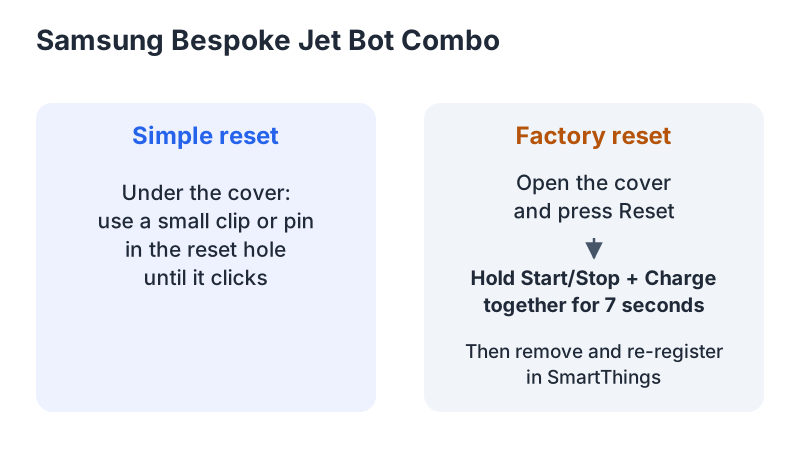
| Samsung Bespoke Jet Bot Combo | Clip or pin in the reset hole under the cover, until a click | — | Press Reset, then hold Start/Stop and Charge together 7 s; see source for access | Samsung US |
| Roborock Q5+ | Reset button for an unresponsive robot | Hold Dock and Power until “Resetting WiFi” | Switch on; hold Dock while pressing Reset until “Restoring factory settings” | Q5+ manual |
| Roborock S7 | Reset button; the robot restarts | Hold Spot Clean and Dock until “Resetting WiFi” | Switch on; hold Dock while pressing Reset until “Restoring the initial version” | S7 manual |
| Roborock S5 Max | Reset button; the robot restarts | Hold Power and Dock until “Reset WiFi” | Switch on, press Reset, then hold Dock until “Start restoring initial version” | S5 Max manual |
| ECOVACS DEEBOT DDX57 (T50 OMNI AU2 manual) | — | Press RESET; follow the voice prompt for network setup | Hold RESET 5 s; a prompt sound, then startup music | ECOVACS manual |
iRobot
iRobot’s general reboot instruction says CLEAN or POWER for about 20 seconds off dock. Its Mini through Max entry specifies Power for about 10 seconds off dock, then 3 seconds to restart. For the Mini through Max 700/800 group, the Roomba HOME app puts the reboot command in the three-dot menu under Robots.
The factory-reset article separates two routes. A manual button reset keeps cloud data, app data and the account link. An app reset removes the robot from the account and disassociates its saved data. Classic app: Product Settings, About, Remove Device from Account. Roomba HOME: Robot Settings, About Roomba, Factory Reset and Remove Robot. The Imprint Smart Map section describes the “Save maps during factory reset” toggle. The Roomba HOME instructions point to creating a new map.
eufy
The factory-default wording applies to the X8, LR30, L35, LR20, L50 and L60 combinations in the table. The 25C, 35C and 25C Max use a different reset button from the other Bounce models.
Samsung
Samsung’s US page covers the Bespoke Jet Bot Combo. After a factory reset, the robot restarts automatically. Then remove the device from the SmartThings app and register it again.
Roborock
For factory settings, the manuals specify a powered-on robot: Q5+ and S7, hold Dock while pressing Reset; S5 Max, press Reset, then hold Dock.
ECOVACS
The DEEBOT manual’s “Restore to default settings” section says to press and hold the RESET button for 5 seconds, then the robot returns to default settings. This is under “3. Under the Cover”; the specifications identify DDX57.
Before a Factory Reset: Maps, Schedules and Ownership
As a precaution, record room names, schedules and no-go zones before any factory reset, and use the app’s own save feature for a map it supports. The sources describe different results:
- iRobot: an app factory reset removes the account link and disassociates saved cloud data (iRobot).
- Roborock: a system reset restores schedules, Wi-Fi and other settings (S7).
- eufy: X8/X8 Hybrid, LR30/L35/LR20 and L50/L60 combinations restore factory defaults (eufy).
- ECOVACS: the RESET hold restores default settings (ECOVACS).
As a precaution, follow the order: find your model’s row, save what the app supports, use the documented sequence and read the confirmation, complete pairing, then test one short job.
Errors That Persist After a Reset
The S5 Max manual directs persistent problems to after-sales support. As a precaution, record the error and attempted steps, consult the error codes guide or the troubleshooting guide, and contact support before repeating a factory reset.
Frequently Asked Questions
Will a reset delete my maps?
iRobot’s reboot article says a reboot keeps maps. For factory resets, check the app-specific rules above.
How long should I hold the reset button?
Use your model’s row. The sources list holds from 3 seconds (eufy L70 Hybrid, L50, L60 and X9 Pro) to 20 seconds (iRobot i and s Series and Braava jet m reboots, and the e Series factory reset).
Does a reset remove the previous owner’s account?
iRobot says manual button resets retain account links; its app reset removes the robot from the account.
Not sure which guide fits? Use the symptom checker
Checked against
Models checked: iRobot Roomba Mini, 100/1000, 200/2000, Plus 400/500/600, Max 700/800, Essential, i, s, e, non-Wi-Fi 500/600/700, Wi-Fi connected 600 and 800/900, Combo, Combo 10 Max, j, and Braava jet m, per iRobot's reboot and factory-reset articles; eufy RoboVac Bounce, G, L70 Hybrid, X8, LR30/L35/LR20, L50/L60 and X9 Pro, per eufy's Wi-Fi reset article; Samsung Bespoke Jet Bot Combo, per Samsung's US reset page; Roborock Q5+, S7 and S5 Max, per each model's user manual; ECOVACS DEEBOT DDX57, per the T50 OMNI AU2 instruction manual. These are document checks, not hands-on tests.
- iRobot: Rebooting Your Robot, All Roomba and Braava Models (support; accessed )
- iRobot: Why factory reset your robot and how to do it? (support; accessed )
- eufy: How to factory reset my RoboVac's WiFi? (support; accessed )
- Samsung US: Reset your Bespoke Jet Bot Combo (support; accessed )
- Roborock Q5+ Robotic Vacuum Cleaner User Manual (manual; accessed )
- Roborock S7 Robotic Vacuum Cleaner User Manual (manual; accessed )
- Roborock S5 Max User Manual (manual; accessed )
- ECOVACS DEEBOT instruction manual (PDF, T50 OMNI) (manual; accessed )