Robot Vacuum Common Problems: Fixes by Symptom and Model
Short answer
Start with the full robot and dock model plus the exact error message. Separate charging, pickup, movement and app problems. Avoid a factory reset until the model’s instructions call for it.
Identify the problem before choosing a guide
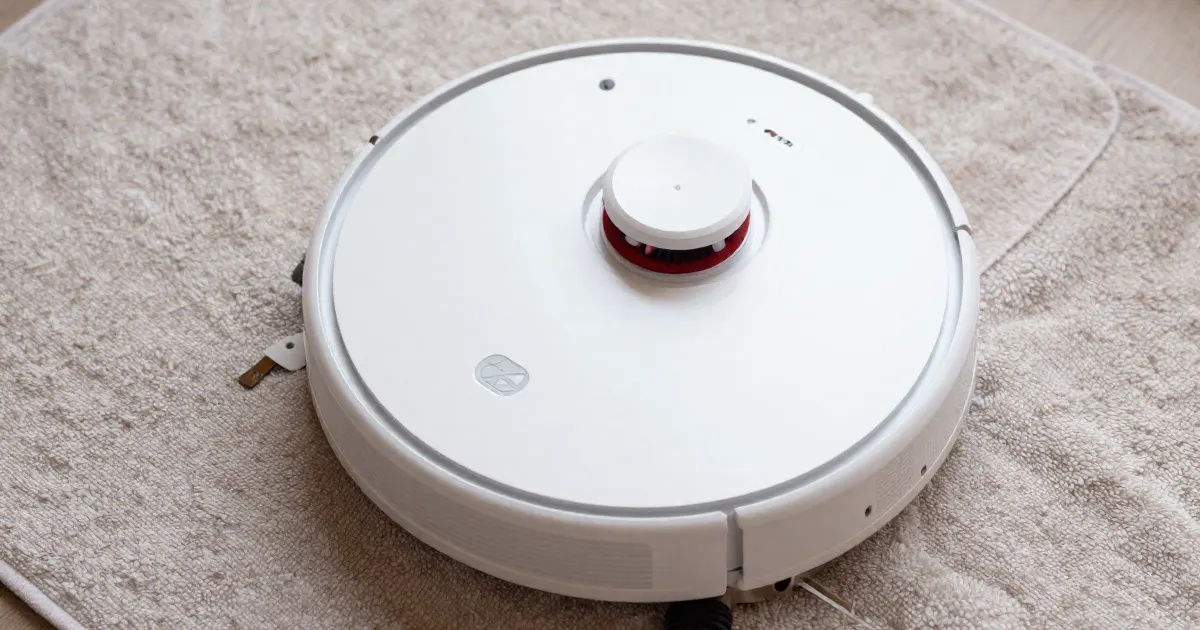
Identify the problem from three facts before choosing a guide: the exact robot and dock model, the code or spoken alert, and the operating state when it appeared. A symptom alone does not settle the cause, because the same symptom or number can have different causes on different models.
Save the message, operating state and location before moving the robot or dismissing its alert. Note whether it was cleaning, charging, emptying at the dock or waiting for a scheduled job. If there is smoke, burning odor, swelling or abnormal heat, stop use and charging instead of working through routine maintenance, as the burning-smell guide explains.
| Main symptom | Relevant guide |
|---|---|
| Won’t turn on or shows no lights | Power-on checks |
| Powers on but will not start a job | Start-up conditions |
| Will not return to the dock | Dock return checks |
| On the dock but not charging, or a charging error | Not charging |
| Self-empty base leaves the bin full | Not emptying its dock |
| Short runtime or shutdowns after a full charge | Battery replacement |
| Smoke, burning odor or abnormal heat | Burning smell |
| Musty, dusty or unpleasant smell (no smoke or burning) | Bad smell |
| A code or spoken alert | Error codes by model |
| Runs but leaves dirt | Pickup and filtration |
| Brush does not turn | Main or side brush |
| No carpet boost, or mops over carpet | Carpet detection |
| Loud or new noise | Noise checks |
| Repeated stops | Error versus pause |
| Keeps getting stuck | Stuck and repeat-trap checks |
| Circles or fails to travel | Wheels and navigation |
| Wheel stuck, lifted or jammed | Wheel error |
| Cliff, bumper or other sensor error | Sensor error |
| Dustbin missing, not detected or full error | Dustbin error |
| Missing room, wrong floor or lost map | Mapping problems |
| Cleans inside a no-go zone or crosses a virtual wall | No-go zones |
| Leaves strips, edges or rooms uncleaned | Missing spots |
| Offline in its own app | Wi-Fi connection |
| Scheduled clean doesn’t start | Schedule checks |
| App works, voice control fails | Alexa/Google account linking |
| Reboot, Wi-Fi reset or factory reset | Reset differences |
| Routine cleaning | Cleaning by component |
| Maintenance or parts reminder in the app | Maintenance reminder |
| Unfamiliar brand or model | Unknown-model route |
| Mopping problem | Mop symptom map |
What changes by model
Brand differences are clearest on each maker’s own pages. The facts below come from the child guides, and each one names the model it describes.
Roborock Q5+
For the Roborock Q5+, the manual separates bumper trouble (Error 2) from brush jams: 5 identifies the main brush and 6 the side brush. A missing bin or filter produces Error 9; the dirty wall sensor and low battery have their own numbers, 26 and 12. Its side-brush schedule combines monthly cleaning with replacement every 3 to 6 months. Use error codes by model to identify the alert and brush maintenance for the relevant component.
iRobot Roomba
For Roomba 500–900, e, i, j and s series, a battery that is not detected is identified as Charging Error 1 in iRobot’s charging chart. A separate Error 26 article assigns insufficient airflow to that number on i/j models and Combo 10 Max. The 800 series instructions distinguish two other responses: relocate the robot before pressing CLEAN for Error 1, or refit its bin before pressing CLEAN for Error 1-4. See charging and other codes and stops during a job.
The iRobot dock guidance identifies Roomba Essentials 1, the 200/2000 series and the 100/1000 standard non-evac dock as designs without a dock light. For those designs, use the robot’s charging response and the model-specific charging checks.
eufy
On the X9 Pro, the voice-alert page lists alert 14 as a missing or unseated dustbin or filter, alert 2 as a wheel blocked by debris and alert 1 as a front bumper that does not move freely. On the L70 Hybrid, the same number 14 means the dust collector is not inserted, and its Error 14 page asks for the robot to be powered off, the filter checked and the collector reinserted until it clicks. On the G series, Error 5 means the robot is physically stuck.
ECOVACS DEEBOT
On the DEEBOT OZMO 950, access to the main brush uses two cover tabs. After powering off, the brush FAQ describes removing hair with the Cleaning Tool, rinsing when needed and reinstalling only after complete drying; see brush maintenance. For DEEBOT circling immediately after startup, a separate FAQ identifies sensor dust, wheel tangles and a sticking bumper rail. Its bumper check is whether each side springs back after being pressed, as covered in circling checks.
Samsung
Samsung gives a charging response for the Jet Bot Combo when cleaning has stopped and the LED is red: return it to the Clean Station (Jet Bot Combo support; see alerts and codes). A POWERbot can instead stop with a ! symbol when a drive wheel is trapped or raised. If cloth or a cord is caught there, its support page requires the emergency switch to be off before the material is removed; see wheel checks.
LG
For the robot vacuums covered by LG’s main-brush instructions, the bin comes out before the robot is inverted onto a soft cloth. The Separate button releases the brush for debris removal, and the cover must click into place on reassembly. For a side brush whose screw turns loosely, or which cannot be fitted or removed, LG’s brush-care page recommends assessment by an LG service technician. See main and side brush checks.
Maintenance is specific to the component
Turn the robot off and isolate the dock as required before inspecting brushes, wheels or contacts. A pause in the app does not replace the manual’s maintenance precautions. Open only user-serviceable covers and retain all bearings, caps and fasteners.
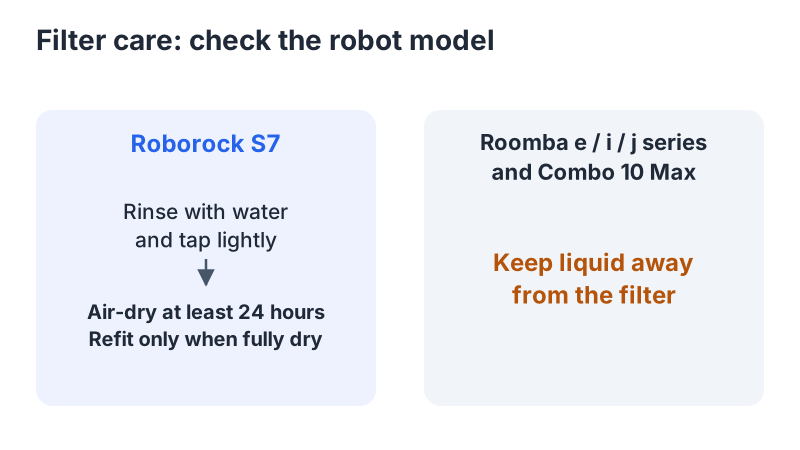
Identify the component before choosing a cleaning method. For the Roborock S7, water rinsing and light tapping are part of filter care, followed by a minimum of 24 hours of air drying and complete dryness before refitting. In contrast, liquid must stay away from filters on Roomba e, i and j series and Combo 10 Max (iRobot filter care). The four cliff sensors on a Roomba 600 series require a clean cloth that is dry and made of microfiber or soft cotton (600 series maintenance). See pickup and filter care and routine cleaning for those separate tasks.
Restart, Wi-Fi reset and factory reset are different
A restart may be a documented response to a particular fault. A network reset changes connection setup. A factory reset can remove maps or settings. Check the exact scope before taking any of these steps, and preserve useful screenshots first. See reset differences.
After approved maintenance, observe one short normal job and record whether the same symptom returns. Persistent faults need manufacturer support with the model, code and steps taken.
For a robot without reliable identification, use the unknown-model route before ordering parts or trying button combinations.
Safety limits from the child guides
Smoke, burning odor, swelling or abnormal heat calls for stopping both operation and charging; follow the burning-smell guide. For the Roborock Q5+, the battery and charging dock must remain intact: the manual prohibits dismantling, repair and modification. Battery replacement on the ECOVACS DEEBOT DO3G.11 is restricted to skilled persons. For Roomba and Braava Charging Error 2, iRobot’s instructions include checking for liquid damage and using an authentic iRobot lithium-ion battery. The circling guide also sets limits on wheel inspection: do not force wheels, open motor modules by prying or introduce lubricant.
Not sure which guide fits? Use the symptom checker
Checked against
Models checked: Roborock Q5+; Roborock S7; Roomba i/j and Combo 10 Max; Roomba 800 series; Roomba 600 series; Roomba docks covered by iRobot support; eufy X9 Pro; eufy L70 Hybrid; eufy G series; ECOVACS DEEBOT OZMO 950; Samsung Jet Bot Combo; Samsung POWERbot; LG robot vacuum rotating brush. These are document checks, not hands-on tests.
- Roborock Q5+ manual (Q340RR) (manual; accessed )
- Roborock S7 manual (manual; accessed )
- iRobot Error 26, i/j and Combo 10 Max (support; accessed )
- iRobot no-power and dock-light guidance (support; accessed )
- iRobot: Charging Error chart (Roomba 500-900, e, i, j and s series) (support; accessed )
- iRobot: Charging Error 2, All Roomba and Braava Models (support; accessed )
- iRobot 800 series error message chart (support; accessed )
- iRobot Roomba 600 maintenance (support; accessed )
- iRobot e/i/j and Combo 10 Max bin and filter care (support; accessed )
- eufy: Voice Alerts and Quick Solutions for X9 Pro (support; accessed )
- eufy: What Should I Do if My RoboVac L70 Hybrid Stops with Error 14 (support; accessed )
- What Should I Do If My G Series RoboVac Model Stops with Error 5 (support; accessed )
- ECOVACS: Why aren't the Main Brush and/or Side Brushes rotating when DEEBOT is cleaning? (DEEBOT OZMO 950) (support; accessed )
- Ecovacs: Why does DEEBOT move around in circles and backwards after starting up? (support; accessed )
- ECOVACS DEEBOT instruction manual (DO3G.11) (manual; accessed )
- Samsung: Jet Bot Combo troubleshooting (UK) (support; accessed )
- Warum hat der POWERbot während der Reinigung angehalten? (support; accessed )
- LG Robot Vacuum: Troubleshooting the 'Remove Foreign Objects From the Rotating Brush' Voice Message (support; accessed )
- LG Robot Vacuum: How to Clean the Rotating Brush (support; accessed )