Robot Vacuum Schedule Not Working? Check These Settings
Short answer
Scheduled cleaning on the Roborock S5 Max, Q5+ and S7 requires battery above 20%. On the S5 Max, DND prevents cleanups from starting. The eufy X9 Pro checks cover power, Wi-Fi, map changes and Auto-return Cleaning. On those three Roborock models, a system reset restores schedules to factory settings. As a precaution, check and recreate the schedule afterward.
Match a missed schedule to the documented model
-
Check 1
Is your Roborock S5 Max, Q5+ or S7 at 20% battery or lower at the scheduled time?
Yes
Charge it above 20%: the S5 Max, Q5+ and S7 manuals all say scheduled cleaning starts only above 20%.
No
-
Check 2
Is Do Not Disturb enabled on your Roborock S5 Max during the scheduled time?
Yes
Disable or change DND in the app; the S5 Max manual says no cleanups start while DND mode is on.
No
-
Check 3
Is your eufy X9 Pro offline, or has its home map changed?
Yes
If it is offline, reset Wi-Fi and reconnect; if the map changed, run a complete cleaning cycle.
Open the guideNo
-
Check 4
Has your Roborock S5 Max, Q5+ or S7 had a system reset since you set the schedule?
Yes
As a precaution, set the schedule again in the app; these models restore schedules to factory settings after a system reset.
Open the guideNo
None of these?
If the eufy X9 Pro still misses its schedule, follow the cancel, remove, upgrade and reconnect sequence in this guide.
Why a scheduled clean does not start
A scheduled clean can fail for several separate reasons, and the sources name different ones for different models. Match the reason to your model and symptom before you change any setting. Each row links to its document.
| Symptom | What the source says | Source |
|---|---|---|
| A Roborock S5 Max, Q5+ or S7 misses a scheduled start at low battery | Scheduled cleaning can only begin when the battery level is above 20% | Roborock S5 Max manual, Roborock Q5+ manual, Roborock S7 manual |
| A Roborock S5 Max does not start cleaning during DND hours | In DND mode, no cleanups will start | Roborock S5 Max manual |
| The eufy X9 Pro does not start on schedule while powered off | A schedule runs only while the robot is powered on | eufy X9 Pro article |
| The eufy X9 Pro skips its schedule after the home map changes | A changed map stops the scheduled cleaning from starting | eufy X9 Pro article |
| A Roborock S5 Max schedule is reset after a system reset | Cleaning schedules are restored to factory settings | Roborock S5 Max manual |
| A DEEBOT skips scheduled tasks | Do Not Disturb, being powered off, Low Battery status and Faulty status prevent scheduled tasks | ECOVACS FAQ 158 |
Check battery, power and Do Not Disturb
The Roborock S5 Max manual treats the battery level as a direct condition for a scheduled start: “Scheduled cleaning can only begin when the battery level is above 20%.” Its FAQ also asks whether the timed cleaning setting is set to “effective once”.
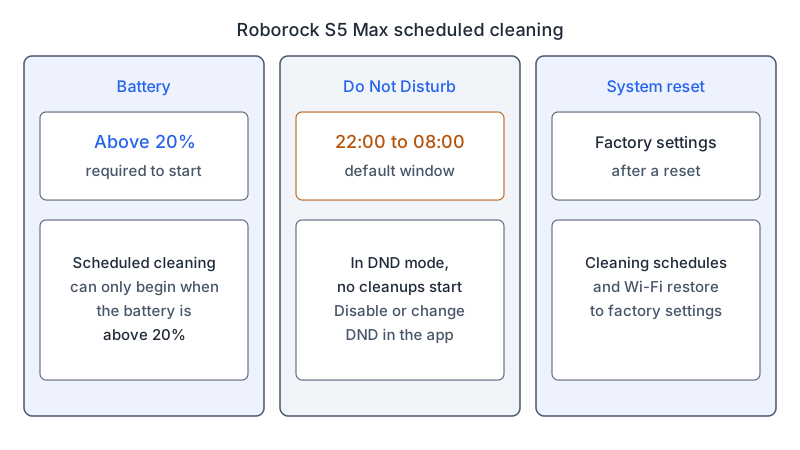
The same manual covers Do Not Disturb. In DND mode, “no cleanups will start, no voice alerts will play, and the power indicator will dim.” It sets the mode “from 22:00 to 08:00 by default” and says it “can be disabled or modified in the app.”
The Roborock Q5+ and S7 manuals give the same battery rule and the same default window. The Q5+ manual gives a default Do Not Disturb (DND) period from 22:00 to 08:00, which can be disabled or changed in the app. During DND, the Q5+ will not automatically resume cleanup. The S7 manual says DND “is enabled by default from 22:00 to 08:00” and “can be disabled or customized in the app.”
ECOVACS FAQ 158 lists four reasons a DEEBOT does not carry out scheduled tasks: Do Not Disturb mode is on, the DEEBOT is not powered on, it is in Low Battery status, or it is in Faulty status. As a precaution, charge a Roborock fully before you test a new schedule, because a battery at or below 20% blocks a scheduled start under all three Roborock manuals.
Check the clock, time zone and connection
The eufy RoboVac article on schedules set with the remote asks you to set the actual time and to choose the correct AM/PM. The same article asks you to confirm that the schedule icon shows on the remote after you set it.
For an X9 Pro that starts cleaning automatically without a schedule, eufy recommends checking that the app and phone time zones match.
Connection is the other part of the X9 Pro article. It asks that the robot be on a 2.4 GHz Wi-Fi network with a stable internet connection. If the robot goes offline, it recommends resetting Wi-Fi and reconnecting. A Wi-Fi reset generally invalidates the previously set appointment. If the robot reconnects to the same account, it restores that account’s earlier schedule settings. If it connects to a different account, the schedule must be set again. For connection steps, see the Wi-Fi connection guide.
Check a system reset or a changed map
The Roborock manuals all describe the effect of a system reset on schedules. The S5 Max manual says: “After a system reset, cleaning schedules, WiFi and other settings will be restored to factory settings.” The Q5+ manual says: “After resetting the system, scheduled cleaning, WiFi, etc. will be restored to factory settings.” The S7 manual says: “After a system reset, cleaning schedules, WiFi, and other settings will be restored to factory settings.”
As a precaution, after a system reset, open the app, check whether the schedule is still listed, and set it again if it is missing.
On the eufy X9 Pro, a changed home map stops a scheduled cleaning from starting. The article’s fix is to run a complete cleaning cycle so the robot maps the home again. To choose the reset that fits your symptom, see the reset guide.
Cancel the schedule and set it again
The eufy RoboVac remote article describes a retry. Hold the schedule button on the remote for 3 seconds to cancel the previous schedule. The RoboVac beeps twice and the schedule icon disappears on the remote. When you set the time and schedule again, keep the remote within 3 meters of the robot and point it directly at the robot with nothing in between.
If the X9 Pro schedule still does not run after the checks above, the article’s sequence is to cancel the scheduled cleaning, remove the robot in the Settings page of the eufy Clean app, upgrade the app and the robot’s firmware, reconnect the robot, and then set and test a new schedule.
ECOVACS FAQ 134 covers DEEBOT schedules set by accident through the app, the remote control, or two presses of the AUTO button. These schedules are managed separately and canceled using the method that set them. For the AUTO-button method, two presses produce two beeps when setting a schedule and three when canceling it.
What changes by model
The table gives one row for each model or model range that the sources name. Each row links to its source.
| Model and source | Conditions the source gives | Documented check or schedule change |
|---|---|---|
| Roborock S5 Max manual | Battery above 20%; DND set from 22:00 to 08:00 by default | System reset restores cleaning schedules to factory settings |
| Roborock Q5+ manual | Battery above 20%; default DND period from 22:00 to 08:00 | System reset restores scheduled cleaning to factory settings |
| Roborock S7 manual | Battery above 20%; DND enabled by default from 22:00 to 08:00 | System reset restores cleaning schedules to factory settings |
| eufy X9 Pro article | Powered on; 2.4 GHz Wi-Fi; map unchanged; Auto-return Cleaning disabled | A Wi-Fi reset generally invalidates the appointment; the same account restores its settings; another account needs a new schedule |
| eufy RoboVac remote article | Fully charged; Main Switch on the underside turned on; correct time and AM/PM; remote within 3 meters | Hold the remote’s schedule button for 3 seconds; two beeps and the icon disappears |
| ECOVACS DEEBOT FAQ 158 | Not in Do Not Disturb; powered on; not in Low Battery or Faulty status | Check DND, power, battery status and fault status |
| ECOVACS DEEBOT FAQ 134 | Schedule set by app, remote or AUTO button | Cancel with the same method; for AUTO, press twice and listen for three beeps |
Roborock
The Roborock S5 Max, Q5+ and S7 manuals all state the 20% battery rule and the 22:00 to 08:00 default DND window. The S5 Max manual also asks whether the timed cleaning setting is set to “effective once”, and a system reset restores cleaning schedules to factory settings in all three manuals.
eufy
The X9 Pro article covers power, the 2.4 GHz connection, the map, Auto-return Cleaning and the Wi-Fi reset. Its Auto-return Cleaning check should be applied in the eufy Clean app: when the battery recharges to 80%, that feature resumes the previous cleaning, and a schedule set at that time will not run. The RoboVac remote article covers schedules set with the remote; its checks appear in the table above.
ECOVACS
ECOVACS FAQ 158 names DEEBOT and lists the four states that stop scheduled tasks. FAQ 134 covers schedules set through the app, the remote or the AUTO button, each canceled with the same method.
Frequently asked questions
Can a Roborock schedule run below 20% battery?
No, according to the S5 Max, Q5+ and S7 manuals: scheduled cleaning can only begin when the battery level is above 20%.
Does a system reset delete my schedule?
The Roborock manuals say a system reset restores cleaning schedules to factory settings. As a precaution, check the schedule in the app after a reset and set it again if it is missing.
Why does my eufy robot start cleaning on its own?
The X9 Pro article says that using Amazon Alexa or Google Assistant to control the robot may cause it to start cleaning by itself, and it asks you to check that both are disconnected. The Alexa and Google guide covers that setup.
Related guides
If the robot does not start a cleaning you requested by hand, the robot vacuum won’t start cleaning guide covers that case. If a cleaning ends early, see the robot vacuum keeps stopping guide. If the robot does not power on at all, see the power guide.
Not sure which guide fits? Use the symptom checker
Checked against
Models checked: Roborock S5 Max User Manual (scheduled cleaning, Do Not Disturb, system reset and FAQ sections); Roborock Q5+ User Manual (scheduled cleaning, DND and reset sections); Roborock S7 User Manual (scheduled cleaning, DND and system reset sections); eufy RoboVac article on schedules set with the remote; eufy X9 Pro article on a schedule that does not run; ECOVACS US FAQ 158 on DEEBOT scheduled tasks; ECOVACS US FAQ 134 on schedules set by accident. These are document checks, not hands-on tests.
- Roborock S5 Max User Manual (manual; accessed )
- Roborock Q5+ User Manual (manual; accessed )
- Roborock S7 User Manual (manual; accessed )
- eufy: What to do if my RoboVac does not Run with Schedule on Remote Control (support; accessed )
- eufy: What should I do if the schedule on the X9 Pro does not work (support; accessed )
- ECOVACS US FAQ: Why won't the DEEBOT perform scheduled tasks? (support; accessed )
- ECOVACS US FAQ (id=134): schedules set by accident (support; accessed )