Robot Vacuum Won't Start Cleaning? Check the Conditions
Short answer
Match the failed action to your model: a new clean, a button press or an automatic resume. Charge a Roborock S7 that reports a low battery, and use the model-specific child-lock checks for unresponsive buttons. For eufy RoboVac L35/LR30/LR20 and the ECOVACS Resume Cleaning feature, the cited DND guidance concerns resuming cleaning.
Robot vacuum won't start: match the failed action
-
Check 1
Does your Roborock S7 report low battery or show a steady red power indicator?
Yes
Charge the S7 before retrying. If red is flashing quickly, read the error message instead.
No
-
Check 2
Is DND active when your Roborock S7 fails to resume cleaning after charging?
Yes
For a failed resume after charging, check the S7's DND hours in the app and disable or adjust DND as needed.
No
-
Check 3
Is DND active when your eufy RoboVac L35, LR30 or LR20 fails to resume after charging?
Yes
Use the app's DND setting for this auto-return cleaning problem.
No
-
Check 4
Is Child lock enabled on your Samsung Bespoke Jet Bot Combo?
Yes
In SmartThings, open the robot card, then More options > Settings, and turn Child lock off before retrying the button.
No
-
Check 5
Does your Roborock S7 report Error 9, Error 3 or Error 16?
Yes
For Error 9, fit the dustbin and filter; for Error 3, move and restart; for Error 16, move to level ground and restart.
Open the guideNo
-
Check 6
Does the robot still refuse to clean after the matching model-specific check?
Yes
Our precaution: contact support if the documented checks fail; provide the model, exact message and steps tried.
No
None of these?
Use your model's error list for an unmatched alert. As a precaution, we recommend contacting support if its checks fail.
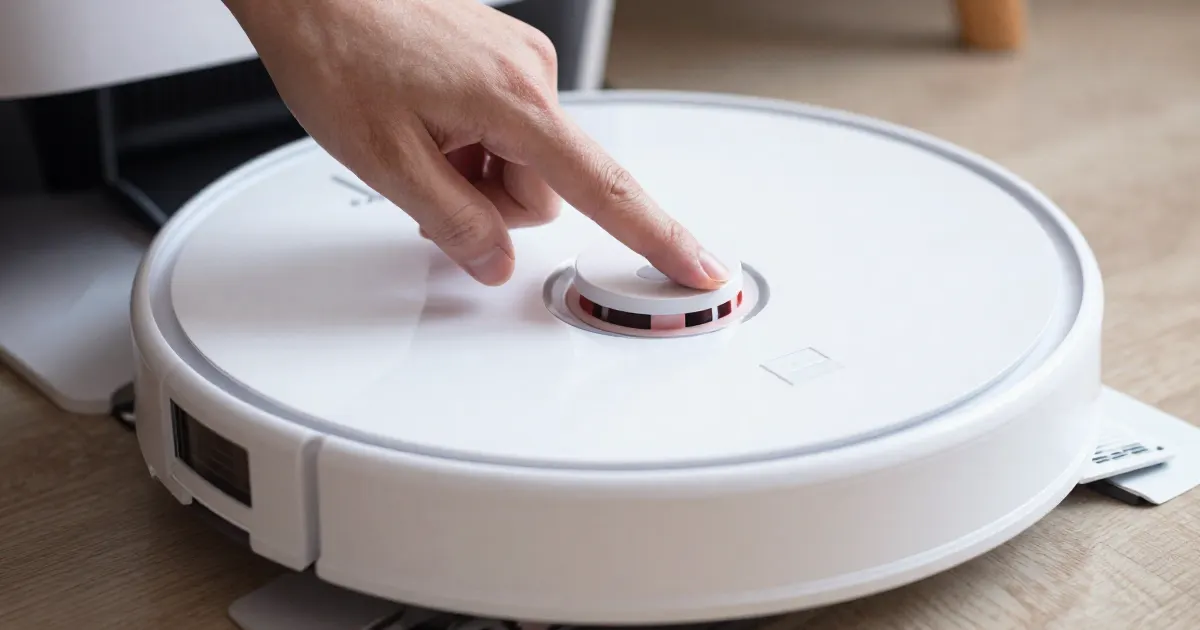
First identify the action that fails: pressing Start on the robot, starting from the app, or resuming an unfinished clean after charging. Note the model, the light pattern and any message. Those observations determine which section below applies.
Short answer: match the condition to the failed action
The cited sources cover several different problems: low battery before a clean, locked buttons, a bin-detection error, other reported errors, and cleaning that fails to resume after charging. Match each check to the model and failed action.
The Roborock S7 manual states that “Cleaning cannot start if the battery level is too low.” For the S7, check Do Not Disturb when cleaning fails to resume after charging. For eufy RoboVac L35/LR30/LR20 and the ECOVACS Resume Cleaning feature, the cited DND guidance also concerns resuming an unfinished job. The iRobot Roomba page covers a bin that is not detected. The order of the sections is this guide’s own, not a manufacturer’s.
Roborock S7: check the battery warning
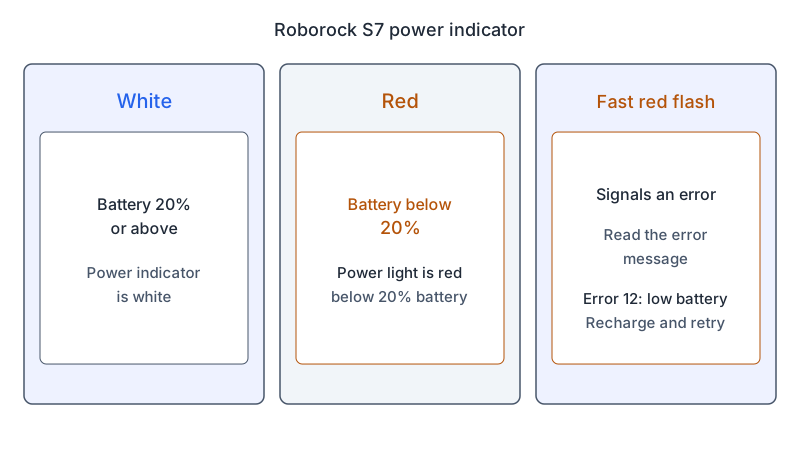
The S7 manual’s On/Off instructions say that cleaning cannot start when the battery is too low, so the robot should charge before the next attempt. Its power indicator is white when the battery is at 20% or above and red below 20%. Fast red flashing signals an error. The error table lists Error 12 as “Low battery. Recharge and retry.”
If the S7 does not power on at all, the battery warning is a different case; use the robot vacuum won’t turn on guide. If the S7 does not charge on its dock, use the robot vacuum charging guide for the next checks.
Check Do Not Disturb
For the Roborock S7, Do Not Disturb (DND) is enabled by default from 22:00 to 08:00, and the app can disable or customize it. The manual says that in DND mode cleaning is stopped, voice prompts are silenced and the power indicator dims. Its troubleshooting table also says DND mode “will prevent cleanup” and lists a clean that does not resume after recharging under that entry. Check DND in the app if cleaning fails to resume after charging; the manual does not explicitly say that DND blocks every manual start.
For eufy RoboVac L35, LR30 and LR20, auto-return cleaning means continuing an unfinished job after the robot recharges. The eufy app guide says that when the robot is in Do Not Disturb mode, it will not start auto-return cleaning, and its voice prompts are deactivated. ECOVACS FAQ 1649 likewise says Resume Cleaning does not activate during Do Not Disturb hours. Use these checks when the failed action is resuming the unfinished job, not starting a new clean.
Check the child lock
On the S7, the child lock locks all buttons while the robot is stationary. The manual says to press and hold the Spot Clean/Child Lock button for three seconds to turn the lock on or off. For eufy RoboVac L35, LR30 and LR20, the app guide says that with the child lock enabled, the buttons are locked and cannot be used. If the buttons do not respond, check whether Child Lock is enabled in the eufy app before assuming a fault.
On the Samsung Bespoke Jet Bot Combo, Child Lock locks the robot’s buttons. In the SmartThings app, open the robot’s card, tap More options, then Settings, and use the Child lock switch. The Samsung article also says the Child Lock turns off automatically when the Jet Bot Combo restarts, so a restart is one way the lock clears.
Check the dustbin, wheels and tilt
For the S7, match the reported number to the error table. Error 9 reads “No dustbin. Install dustbin and filter.” Error 3 means the wheels are suspended, and Error 16 means the robot is tilted. Follow the instruction for the number shown rather than applying all three. The manual also says to relocate the robot and restart cleaning after resolving any of these errors. If the bin is already fitted but Error 9 persists, use the robot vacuum dustbin error guide.
For Error 3, move the robot and restart it. For Error 16, place it on level ground and restart. Record the number if it returns.
On iRobot Roomba 600, 700, 800 and 900 series, the bin-not-detected message is Error 14 or 1-4. The support page says to confirm the bin is installed properly and wipe the bin contacts on both the bin and the robot with clean, lightly dampened melamine foam. If the message persists, a replacement bin may be needed; the page directs you to the iRobot Store or Customer Care to order one. It also says to re-install the bin and press CLEAN to restart.
Recognize the Roborock S7 update indicator
Rapid white flashing identifies a firmware update on the S7. The manual says firmware is updated from the app, and the power indicator flashes white quickly during the update. If you see that pattern, check the update status in the app.
What changes by model
Each row links to the page it comes from. A condition in one row belongs to that robot, so do not carry it to another brand.
| Brand and model | Condition or resume setting | Matching check | Source |
|---|---|---|---|
| eufy RoboVac L35, LR30 and LR20 series | Do Not Disturb stops auto-return cleaning and turns off voice prompts | Check DND in the app when an unfinished job does not resume after charging | eufy app function guide |
| eufy RoboVac L35, LR30 and LR20 series | Child Lock locks the buttons | If the buttons do not respond, check Child Lock in the app | eufy app function guide |
| Roborock S7 | Cleaning cannot start with a battery that is too low; Error 12 | Charge on the dock before retrying | Roborock S7 user manual |
| Roborock S7 | DND is enabled from 22:00 to 08:00 by default; the troubleshooting entry concerns failure to resume after charging | Check DND in the app for that resume problem | Roborock S7 user manual |
| Roborock S7 | Child lock locks all buttons while the robot is stationary | Press and hold Spot Clean/Child Lock for three seconds | Roborock S7 user manual |
| Roborock S7 | Error 9, Error 3 and Error 16 | Install the dustbin and filter; move and restart; move to level ground | Roborock S7 user manual |
| Samsung Bespoke Jet Bot Combo | Child Lock locks the robot’s buttons and turns off at restart | SmartThings: robot card, More options, Settings, Child lock switch | Samsung child lock article |
| ECOVACS robots | Resume Cleaning does not activate during DND hours, and not after an error alarm on return to charge | Check DND hours and confirm Resume Cleaning is enabled and in auto mode | ECOVACS FAQ 1649 |
| iRobot Roomba 600, 700, 800 and 900 series | Error 14 or 1-4: bin not detected | Reinstall the bin, wipe the bin contacts, press CLEAN to restart; a replacement bin may be needed if the message persists | iRobot article 8966 |
eufy RoboVac L35, LR30 and LR20 series
Choose the setting that matches the failed action: Child Lock for unresponsive physical buttons, or Do Not Disturb for an unfinished job that does not resume after charging. Note whether you pressed the robot’s button or used the app, so support can separate a button problem from a resume problem.
Roborock S7
Use the S7’s error number or indicator pattern to choose the matching section above. Record whether the warning appears before movement, during a clean or after a charging break.
Samsung Bespoke Jet Bot Combo
Use the SmartThings Child lock switch when a button press does not start the robot; the path is in the child lock section above. Record whether the robot responds once the switch is off.
ECOVACS robots
Use ECOVACS FAQ 1649 for an unfinished job that does not resume after charging. Check that Resume Cleaning is enabled and that the attempt is outside DND hours. The FAQ also says that an error alarm on the return to charge prevents resumption, advises against restarting or resetting the robot after activating Resume Cleaning, and states that the feature works only in auto mode.
iRobot Roomba 600, 700, 800 and 900 series
For the bin error, the iRobot page says the troubleshooting and full-bin indicators light up with it, and that the 600 series has no full-bin indicator. On Wi-Fi-connected 600 and 800 series, the page shows the same 1-4 code and directs you to the iRobot Home app for help. Reinstall the bin, then press CLEAN to restart. If the message persists after you have wiped the contacts, the page says a replacement bin may be needed.
When to stop and contact the manufacturer
As a precaution, we recommend contacting support if the documented checks for your model and failed action do not resolve the problem. Record the model, the exact message or behavior, and each step already tried.
If the robot leaves the dock and returns to it again, or shows a message that is not in your manual, treat it as a separate problem and use the robot vacuum troubleshooting hub to find the matching symptom. As a precaution, we recommend leaving internal sensor or switch checks to the manufacturer’s support team.
Frequently asked questions
Why won’t the robot start when it is fully charged? Choose the check that matches the failed action: the model-specific lock check for unresponsive buttons, the S7 error table for a reported code, or the eufy/ECOVACS resume checks for an unfinished job. A battery reading alone does not tell you which of those cases you have.
Does Do Not Disturb explain every failed start? Match its documented effect to your product. For eufy RoboVac L35/LR30/LR20 and ECOVACS Resume Cleaning, use the DND check for a job that fails to resume after charging. For the Roborock S7, use the DND section above.
Not sure which guide fits? Use the symptom checker
Checked against
Models checked: Roborock S7 user manual (On/Off battery note, Do Not Disturb, child lock, error table, common issues, firmware update); eufy App Function Guide for RoboVac L35, LR30 and LR20 series (Do Not Disturb and child lock); Samsung Bespoke Jet Bot Combo child lock article (ANS10002340); ECOVACS US FAQ 1649 on Resume Cleaning (DND hours, error alarm, auto mode); iRobot UK support article 8966 on Error 14 or 1-4 (bin not detected), Roomba 600, 700, 800 and 900 series. These are document checks, not hands-on tests.
- Roborock S7 Robotic Vacuum Cleaner User Manual (manual; accessed )
- eufy: App Function Guide for RoboVac L35/LR30/LR20 Series (support; accessed )
- Samsung: Activate Child Lock on your Bespoke Jet Bot Combo (support; accessed )
- ECOVACS US: What to do if the robot isn't resuming cleaning (FAQ 1649) (support; accessed )
- iRobot: Bin not detected, Error 14 or 1-4 (UK support article 8966) (support; accessed )