Robot Vacuum Not Charging? Match the Error to Your Model
Short answer
As a precaution, match your model and charging symptom to the cited instructions before cleaning contacts or checking base power, and use the linked return-to-dock or power-on guide for those symptoms.
Robot vacuum not charging: match the symptom and model
-
Check 1
Is there a damaged cord, liquid in the dock, unusual heat or a swollen battery?
Yes
As a precaution, stop charging and follow the manufacturer's safety guidance.
No
-
Check 2
Does the robot stay completely dark on its base?
Yes
As a precaution, use the power-on guide for your model and keep the battery casing closed.
Open the guideNo
-
Check 3
Does the robot fail to reach the dock?
Yes
As a precaution, use the return-to-dock guide for your model when the robot cannot reach its base.
Open the guideNo
-
Check 4
Does your Roomba show a numbered charging error?
Yes
Find that exact number in iRobot's chart and follow the action listed for it below.
No
-
Check 5
Are the charging contacts on your Roborock Q5+, S7 or S5 Max dirty?
Yes
Clean them with a soft dry cloth, as your manual describes, and retry charging.
No
None of these?
As a precaution, contact the manufacturer if the model-specific checks fail, with the model, exact message and steps tried.
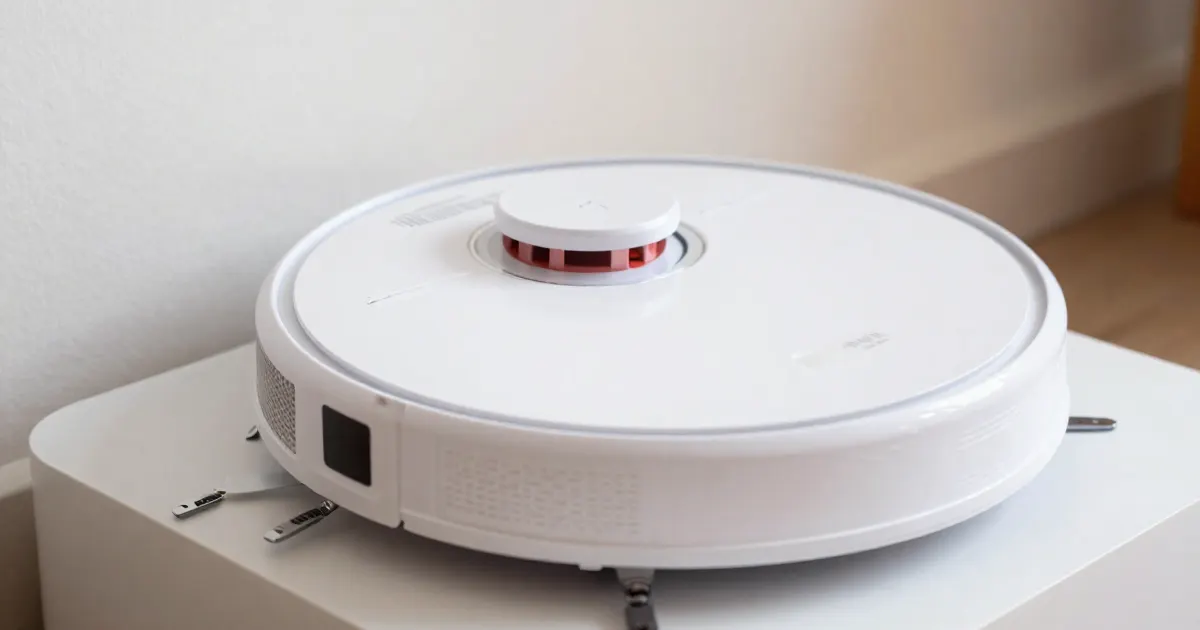
This guide compares charging codes, dock indicators and troubleshooting instructions from five brands, with links to the manufacturer sources. The table identifies the robot families and stations discussed in each entry. As a precaution, use the instructions that match your robot, station and reported symptom.
As a precaution, stop charging if you see a damaged cord, liquid inside the dock, unusual heat or a swollen battery, follow the manufacturer’s safety guidance, keep the battery casing closed, and use only a manufacturer-approved power supply for your model.
Model and dock identification
As a precaution, record the complete message and code, whether the robot reaches the base, and the robot and station model numbers. The Q5+ manual identifies robot Q340RR, docking station SPCDZ01RR and Auto-Empty Dock models AED03LRR and AED04LRR; its electrode-brush illustration belongs to the Auto-Empty Dock. The S7 and S5 Max manuals identify charging dock models CDZ11RR and CDZ12RR.
Related guides cover return-to-dock failures, robots that will not power on and other robot vacuum error codes.
What changes by model
Each row names the model its source names, and links to that source.
| Brand and model | Charging message or sign | Documented steps | Source |
|---|---|---|---|
| Roomba entries in iRobot chart 19598 | Charging codes 4, 5, 21, 104 and 105 | Clean the charging contacts | iRobot charging error chart |
| Roomba entries in the same iRobot chart | Charging codes 1, 8, 19, 20 and 101 | Codes 1 and 101: remove and reinstall the battery. Code 8: confirm an iRobot Authentic battery, then reinstall. Code 19: reinstall the battery and clean the contacts. Code 20: remove for 15 minutes, then reinstall | iRobot charging error chart |
| Roborock Q5+ (Q340RR, Auto-Empty Dock AED03LRR or AED04LRR) | Power indicator pulsing: charging or starting up | Wipe the robot’s charging contacts with a soft dry cloth; clean the dock location beacon, charging contacts and electrode brushes on the dock | Roborock Q5+ manual |
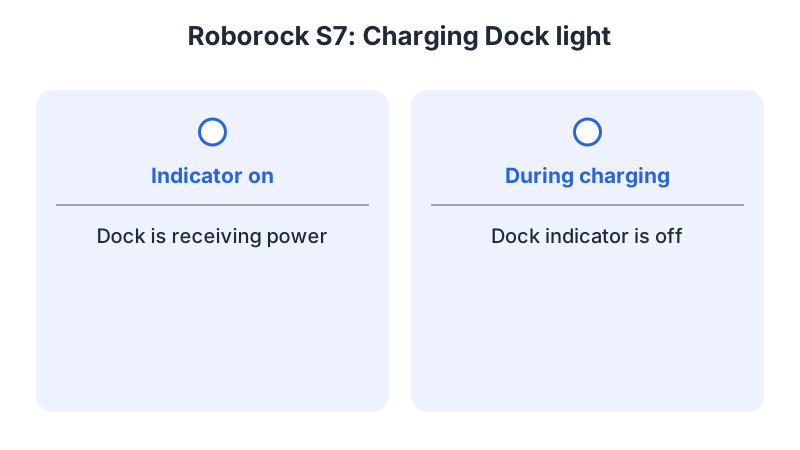
| Roborock S7 (charging dock CDZ11RR or CDZ12RR) | Dock indicator on while the dock is powered, off while the robot charges | Keep the dock on a level surface, flat against a wall; wipe the robot’s charging contacts monthly with a soft dry cloth | Roborock S7 manual |
| Roborock S5 Max (charging dock CDZ11RR or CDZ12RR) | Dock indicator on while the dock is powered, off while the robot charges; the index pairs it with a main unit that will not charge | Do not wipe or clean the charger prongs with a wet cloth or wet hands | Roborock S5 Max manual |
| eufy Omni E25 and E28 robot with its base station | Robot will not power on or charge on its base | If the base is unpowered, check outlets, cable and switch; if powered, gently push the robot fully into the base | eufy E25/E28 article |
| ECOVACS DEEBOT with a station cleaning sink (FAQ 479) | White flashing AUTO button after docking | Try again after 4 to 5 hours; check the power cord and the power switch under the top cover; clean the cleaning sink and charging electrodes | ECOVACS FAQ 479 |
| Samsung Jet Bot and Bespoke Jet Bot Combo with Clean Station | Repeatedly gets on and off the dock | Check the dock is level and its charging pins are clean; unplug the dock and clean the pins on both dock and robot with a dry cloth | Samsung Jet Bot page |
iRobot Roomba
The chart covers Roomba and Braava and lists the 500-900, e, i, j, s, 100/1000, 200/2000, Plus 400, Plus 500, Max 700 and m families. As a precaution, match the reported code to its entry and your model documentation. Codes 4 and 5 call for cleaning the charging contacts because a low current fault was detected with the dock or the robot. Code 21 means the robot docked but could not charge, and the chart’s fix is also to clean the contacts. Codes 104 and 105 point to the same contact cleaning.
Codes 1 and 101 mean Roomba cannot detect its battery, and the fix is to remove and reinstall it. Code 8 means Roomba cannot communicate with its battery; the chart asks you to confirm the battery is iRobot Authentic, then remove and reinstall it. Code 19 means charging timed out, and the chart asks you to reinstall the battery and clean the contacts. Code 20 means a battery fault or a battery not ready to charge; the chart asks for a 15-minute removal and reinstallation, and says the battery may need replacing if the error persists. The chart also warns that aftermarket batteries may cause charging errors and says they void the warranty.
Roborock
The three manuals cover the Q5+, the S7 and the S5 Max. The Q5+ manual says: “Use a soft dry cloth to wipe the charging contacts on the robot.” It also says to clean the dock location beacon, charging contacts and electrode brushes on the dock. Its safety text adds: “Do not use wet cloth or liquids for cleaning the charging contacts.”
The S7 manual says: “The Charging Dock indicator is on when the Charging Dock is electrified, and off when the robot is charging.” It also says: “Keep the Charging Dock on a level surface, flat against a wall.” Its maintenance table lists the robot’s charging contacts for monthly cleaning, with “Wipe clean with a soft dry cloth.” The S5 Max manual uses the same indicator wording, and its troubleshooting index pairs the charging dock with a main unit that will not charge.
eufy Omni E25 and E28
The eufy article covers the E25 and E28 robot and its base station. The article uses the indicator on the base station’s clean water tank to check base power. If the base is unpowered, it recommends other outlets, a firmly connected cable and turning on the base’s power switch. If the base is powered, it advises gently pushing the robot fully into the base station and checking whether it powers on. The article then describes a factory reset: hold the robot’s Reset button for three seconds with a pin, then hold the Power button for three seconds.
As a precaution, consult eufy support about unresolved battery questions; the battery replacement guide provides related reading.
ECOVACS
ECOVACS FAQ 479 describes a DEEBOT and a station with a cleaning sink. Once docked, the robot’s AUTO button flashes white, and the page says to try the robot again after four to five hours. Its steps are to check the power cord at the outlet and the station, to set the power switch under the top cover to on, and to hold AUTO for three seconds once the robot powers on in front of the station. The page also says to check that genuine mopping pads are in use, and to clean the cleaning sink and charging electrodes if they are dirty.
Samsung Jet Bot
Samsung’s page covers the Jet Bot, the Bespoke Jet Bot Combo and the docking station it calls the Clean Station. For a Jet Bot that repeatedly goes on and off the dock, the page points to the dock’s level and the charging pins. Its steps are to turn off the power switch on the bottom of the vacuum, unplug the dock, and clean the charging pins on both the dock and the robot with a dry cloth. Then plug the dock into a working outlet, place it on a flat, level surface, and dock the robot again. If the robot still will not charge, contact the Samsung Support Center.
iRobot actions by charging code
The iRobot chart assigns different actions to its charging codes. Codes 4, 5, 21, 104 and 105 call for contact cleaning. Codes 1 and 101 call for reinstalling the battery, and code 20 calls for a timed removal. As a precaution, record the message after the documented step and consult the matching entry if another code appears.
As a precaution, check the iRobot entry before you buy a battery. Code 20’s entry says the battery may need replacing if the error persists after the timed removal. The battery replacement guide covers what to check before you order a part.
Support after model-specific checks
As a precaution, stop repeating unsuccessful checks after completing the documented steps for your exact model and contact its manufacturer with the model, message or light pattern, tested outlet and steps already tried. Samsung directs owners to its Support Center.
Frequently asked questions
Which iRobot code should I look up? As a precaution, match the full code reported by your robot or app to its iRobot chart entry, preserving all digits; codes 1 and 101 have separate entries.
What does the Q5+ manual say about wet cleaning? The Q5+ manual says: “Do not use wet cloth or liquids for cleaning the charging contacts.”
Not sure which guide fits? Use the symptom checker
Checked against
Models checked: iRobot Roomba series named in charging error chart 19598; eufy E25/E28 robot and base station (charging article); ECOVACS DEEBOT with a station cleaning sink (FAQ 479); Samsung Jet Bot, Bespoke Jet Bot Combo and Clean Station (TSG10002358); Roborock Q5+ (Q340RR), S7 and S5 Max user manuals (charging dock CDZ11RR or CDZ12RR for S7 and S5 Max). These are document checks, not hands-on tests.
- iRobot: Charging Error Chart: All Roomba and Braava Models (support; accessed )
- eufy: What should I do if my E25/E28 robot cannot power on or charge properly? (support; accessed )
- ECOVACS: The robot cannot be charged (FAQ 479) (support; accessed )
- Samsung: Jet Bot will not charge (TSG10002358) (support; accessed )
- Roborock Q5+ Robotic Vacuum Cleaner User Manual (manual; accessed )
- Roborock S7 User Manual (manual; accessed )
- Roborock S5 Max User Manual (manual; accessed )