Robot Vacuum Won't Return to Dock? Navigation vs Charging
Short answer
Watch one return attempt and match the result to your model's instructions below. If the robot cannot reach the dock, use the return checks. If it parks without charging, use the separate charging checks. Contact-cleaning methods and indicators depend on the robot and dock, including within iRobot's range.
Robot vacuum won't return to dock: identify the symptom
-
Check 1
Does the robot search or stop away from the dock without reaching it?
Yes
Check the station's power, its position and a clear approach, using your model's clearance instructions.
No
-
Check 2
Does another device work in the outlet while the dock still has no power?
Yes
As a precaution, do not use an arbitrary adapter or a damaged cord. Ask the manufacturer about the correct part.
No
-
Check 3
Does the robot park on the dock but show no charging response?
Yes
Use the cleaning instructions for your exact robot and dock; iRobot lists several separate procedures. Roborock Q5+ specifies a soft dry cloth.
No
-
Check 4
Does the robot show an error number, spoken message or app error?
Yes
Look up the number for your exact product family. A charging error belongs in the error-code guide.
Open the guideNo
None of these?
If the checks do not explain it, record the model, station type, start point, return command and error code, then contact the manufacturer.
Find out where the return fails
Send the robot home with the control your model documents, then watch one attempt. Note whether it cannot find the dock at all, finds it but cannot complete the approach, or parks on it without showing a charge. Each result leads to a different check. A charging failure belongs in the charging checks below. As a precaution, treat a failed return as separate from a dead battery, a bad map or a Wi-Fi fault until a check points to one of them.
| What you see | Check next |
|---|---|
| The robot searches or stops away from the dock | Dock location and power, a clear approach, and whether the robot was lifted or started somewhere else |
| It reaches the area but cannot line up | Objects on the approach, the dock’s position, and the model’s dock signal surfaces |
| It parks but shows no charging response | Dock power and the contact procedure for that model |
| It reports an error number | Look up the number for the exact product family; a charging error belongs in the error-code guide |
If the robot was picked up or the dock was moved, note that before you change any setting. For a map that is wrong after a relocation, see the mapping guide. If a restart is the next step, see how to reset a robot vacuum.
Check the station and the route
For the Roomba and Braava models covered by iRobot’s Error 18 article, check the dock connections, test the outlet with another device, and check whether the dock moved or rotated during cleaning. Keep the approach clear. For the other models, follow the matching row below and its source.
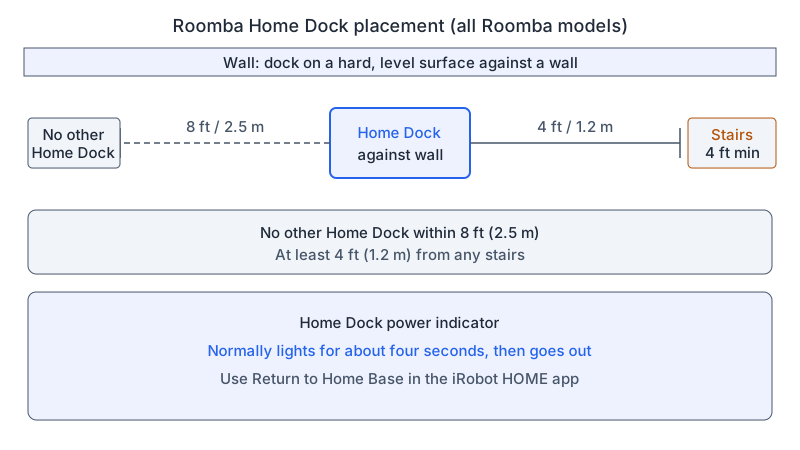
A dark dock light is not always a power fault. iRobot’s return-home article says the Home Dock indicator normally lights for about four seconds and then goes out. As a precaution, do not use an arbitrary replacement adapter or a damaged cord. If the outlet works and the dock still receives no power, contact the manufacturer about the correct part.
If the robot docks but never charges
Record any spoken message or app error before you clean anything. A displayed charging error belongs in the error-code guide and the charging error guide.
For Roomba and Braava models covered by iRobot’s general contacts procedure, unplug the dock, wait 60 seconds, and use lightly dampened melamine foam or a lightly dampened cloth on the contacts. The Home Base docking sensor window takes a dry microfiber or soft cotton cloth. The article redirects Essential 2 and the Mini 100/1000, Plus 400, Plus 500 and Max 700 groups to separate instructions. Its Auto-Fill/Auto-Wash dock section specifies a clean, dry cloth. The Roborock Q5+ manual, section C9, specifies a soft dry cloth for the robot contacts; its safety instructions prohibit wet cloths or liquids on charging contacts. As a precaution, use only the procedure for your exact robot and dock.
For a Roomba 200/2000 that is placed on its dock by hand but does not charge, iRobot’s charging article specifies a gap of 1 cm to 1/2 inch between the dock and bumper. Pushing it farther can prevent contact.
For new Roomba 100/1000, 200/2000 or Max 700 Vac Series robots that shut down immediately after leaving the dock, fail to increase their battery percentage, or are unresponsive, the charging article gives this ship-mode procedure: remove the robot from the dock, place it on a flat, level surface, hold POWER for at least 30 seconds, release it, then tap POWER again to confirm the lights stay off. Return it to the dock within 4 minutes. As a precaution, use this procedure only for those models and symptoms.
For the Roborock Q5+, the manual says that when the robot cannot charge, you should check that the power indicator turns on and that both ends of the power cable are connected. Where contact is poor, clean the contact areas on the dock and the robot. The manual also says the robot should be used between 4 and 40°C (39 and 104°F) and that charging slows at high or low temperatures.
What changes by model
The table compares the checks each source gives, one row per model or family. Each row links to the source that names it.
| Model | Dock and placement | Power and contacts | Next step if it still fails |
|---|---|---|---|
| iRobot Roomba, all models | HOME button or app return; j series button held 2–5 seconds; no other Home Dock within 8 ft (2.5 m); dock against a wall, at least 4 ft (1.2 m) from stairs | Dock light normally on for about four seconds | Error 18 article for covered families |
| iRobot Roomba 200/2000 | Manual placement for charging: leave a 1 cm to 1/2 inch gap between dock and bumper | Use the charging article for a robot that reaches the dock but does not charge | Use the documented procedure for the observed charging or power symptom |
| iRobot Roomba Combo (EMEA) | Follow the Error 18 placement checks | Seat the cord at both ends and check that the robot lights up on the station | Check for another charging station within 8 ft (2.5 m) and wheel debris |
| Roborock Q5+ (Q340RR) | If obstacles surround the dock, move it to an open area | For a separate charging failure, check dock power, cable connections and contacts | If the robot is too far from the dock, place it closer and retry |
| eufy RoboVac L70 | Test facing the base from within 1.5 m (4.9 ft); if successful, check base location and clear 0.5 m (1.6 ft) each side and 1.5 m (4.9 ft) in front where possible | If power is lost before return: reconnect the adapter to the base and a different outlet, clean both sets of pins with a dry clean cloth, and charge for 6+ hours | Send a video if the nearby return test fails |
| eufy X8 Series RoboVac | Test facing the base from within 6 ft using HOME; check its map icon | Check both sets of charging pins | If the test fails, send a video. If other checks fail, reset the map and restart from the base; then enable Activity Log Upload, run 1 or 2 times and contact support |
| Ecovacs DEEBOT (FAQ 612) | Match the AUTO button and app Return control to your model; test from about 1 m in front | If the test succeeds, check protective film removal, cleaning starts from the dock, and placement per the manual | In that successful-test branch, move the dock and retry |
iRobot Roomba and Braava
The return-home article covers all Roomba models: a HOME button press or the app’s return command sends the robot back, and on the j series the robot button is held for 2 to 5 seconds. The Error 18 article directs Essential owners to a separate article and LiDAR docking trouble to Error 1010. Use its remaining checks only for the covered Roomba and Braava models.
Roborock Q5+
The Q5+ manual also asks you to clean the dock’s location beacon, charging contacts and electrode brushes. Its 40°C (104°F) and 4°C (39°F) limits belong to the Q5+ and should not be applied to other vacuums as a rule.
eufy RoboVac L70 and X8 Series
The L70 article and X8 Series article direct owners to check base location after a successful nearby return test. Both specify an accessible position against a wall and clean charging pins. For X8 placement, clear obstacles within 1 m/3 ft on each side and 2 m/6 ft in front where possible; use the base sticker to prevent shifting. Follow the conditional escalation steps in the table.
Ecovacs DEEBOT
For a DEEBOT with the controls described in FAQ 612, place the robot about 1 m directly in front of the dock, then hold AUTO for 3 seconds or select Return mode in the app. If this test succeeds, check that the dock film is removed, that cleaning starts from the dock, and that dock placement follows the model manual; the FAQ also lists moving the dock and trying again in this branch.
If the checks do not explain it
Keep a short record of the model, station type, starting point, return command, error code and the point where the attempt fails. If the model’s support procedure does not resolve the behaviour, send that record to the manufacturer. These pages are model-specific. As a precaution, rebuild a map, replace a battery, change Wi-Fi settings or dismantle an auto-empty station only when your model’s own instructions name that step. As a precaution, do not estimate battery age from a dark light. As a precaution, stop charging if you see damaged contacts, liquid damage, unusual heat or a damaged battery case, and follow the manufacturer’s safety guidance.
For other faults, see the robot vacuum troubleshooting hub. If the app cannot reach a robot that still responds to its physical control, use the app connection guide for that separate symptom.
Not sure which guide fits? Use the symptom checker
Checked against
Models checked: iRobot Roomba models in the Does Not Return Home article; Roomba and Braava models in the Error 18 article; Roomba 200/2000 and new 100/1000, 200/2000, Max 700 Vac Series in the charging article; Roomba and Braava docks in the charging contacts article; Roborock Q5+ with Q340RR robot and AED03LRR/AED04LRR charger; eufy RoboVac L70; eufy X8 Series RoboVac; Ecovacs DEEBOT generic dock FAQ. These are document checks, not hands-on tests.
- iRobot: Does Not Return Home, All Roomba Models (support; accessed )
- iRobot: Error 18, All Roomba and Braava Models (support; accessed )
- iRobot: Why does my Roomba or Braava not turn on or charge properly? (support; accessed )
- iRobot: How to Clean the Charging Contacts (support; accessed )
- Roborock: Q5+ User Manual (manual; accessed )
- eufy: What if my L70 RoboVac cannot return to the Charging Base (support; accessed )
- eufy: What should I do if my X8 Series RoboVac fails to return to the charging base (support; accessed )
- Ecovacs: DEEBOT cannot find the charging dock (support; accessed )