Robot Vacuum Sensor Errors: Cliff, Bumper and LiDAR Checks
Short answer
As a precaution, match the error to your model and sensor before choosing a cleaning method. iRobot specifies a dry microfiber or soft cotton cloth for Roomba cliff sensors. Its bumper article gives a separate procedure for the listed series. For Roborock S7 Error 4, clean the cliff sensors, move the robot away from drops and restart. As a precaution, stop using a robot whose sensor looks cracked or loose.
Sensor errors by model and component
-
Check 1
Does your Roborock S7 or S5 Max show Error 4, a cliff sensor error?
Yes
Clean the cliff sensors, then move the robot away from drops (S7) or raised edges (S5 Max) and restart.
Open the guideNo
-
Check 2
Does your Roborock S7 show Error 1, or your S5 Max show Error 1?
Yes
S7: check for an obstruction at the LiDAR turret or laser and retry. S5 Max: rotate the laser head to check that it turns freely.
No
-
Check 3
Does your iRobot Roomba bump into objects harder than before?
Yes
If your series is named in the bumper article, wipe the bumper with a lightly dampened melamine pad, then use compressed air with the robot off and on its back.
No
-
Check 4
Does your eufy RoboVac L35, LR30 or LR20 show Error 12?
Yes
Clean the infrared sensor on the right side of the bumper with a dry, clean cloth.
No
-
Check 5
Does your eufy RoboVac give three beeps with a flashing red light?
Yes
As a precaution, confirm this beep pattern and the drop-sensor cleaning method in your model's manual before cleaning.
No
-
Check 6
Does a sensor look cracked, scratched or loose?
Yes
As a precaution, stop using the robot and contact the manufacturer. LG directs owners of a damaged cliff sensor to a service technician.
No
None of these?
As a precaution, if the error persists after these checks, contact support with the model and exact error.
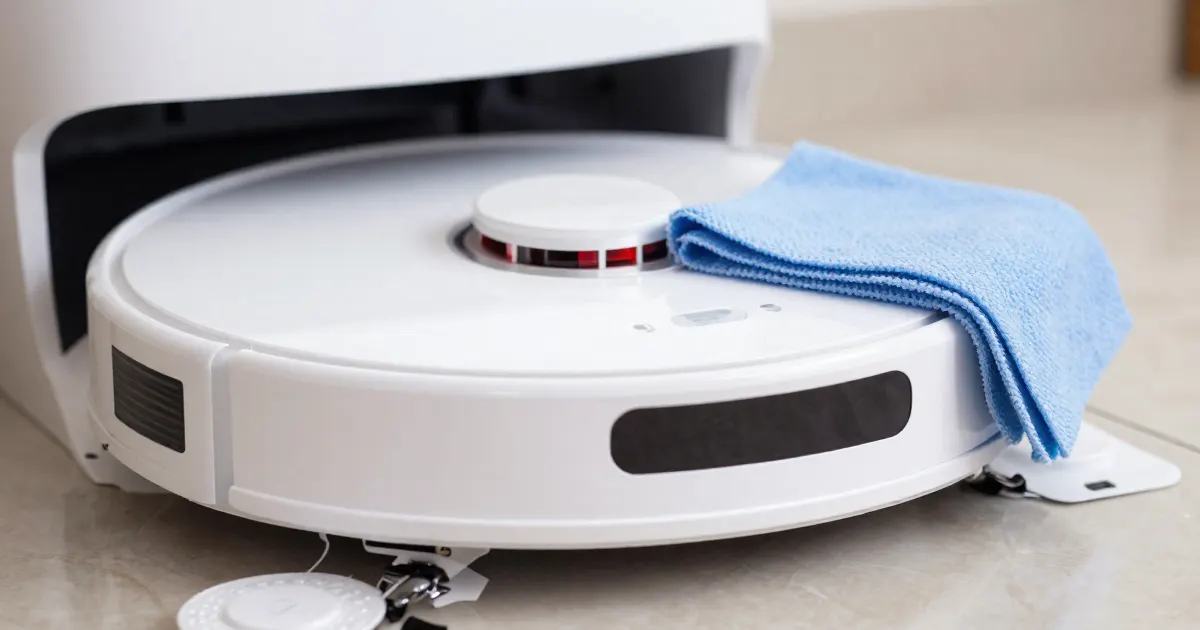
As a precaution, find the sensor the error message names, then clean that sensor with the material its manual specifies. The sources below use different materials: a dry microfiber or soft cotton cloth for Roomba cliff sensors, a lightly dampened melamine pad for the Roomba bumper, and a clean dry cloth for the three drop sensors described in eufy’s three-beep article. Each section gives what the source says, the model or series it covers, and a link to it.
Sensor names and error codes in the Roborock manuals
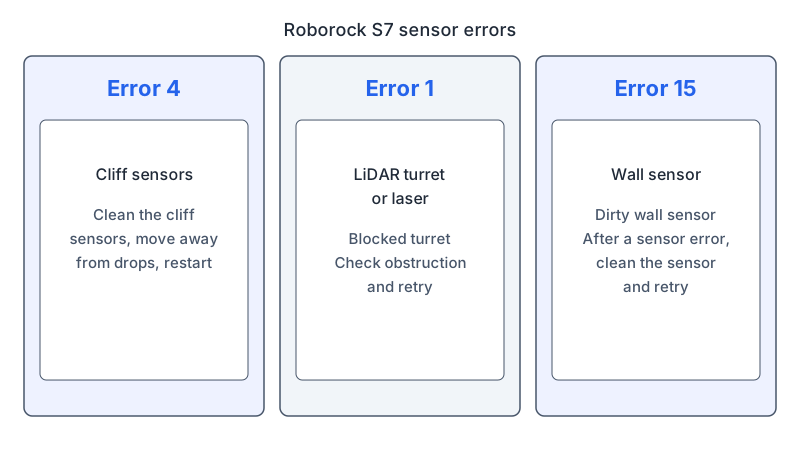
The Roborock S7 manual lists Error 4 as a cliff sensor error and Error 1 as a blocked LiDAR turret or laser. The Roborock S5 Max manual also lists Error 4 for the cliff sensors, but its Error 1 concerns the LDS unit, which it describes as jammed, and its Error 26 covers the wall sensor. The S7 manual uses Error 15 for a dirty wall sensor. For code-by-code lookups, see the robot vacuum error codes guide.
What changes by model
Each row gives the sensor or error that the linked source names, the cleaning or check it specifies, and the model or series it covers. The eufy entries distinguish the models covered by the Error 12 article from the beep pattern discussed in a separate support article.
| Brand, model or support article | Sensor or error named | Cleaning or check named | Source |
|---|---|---|---|
| iRobot Roomba, all series (cliff sensor article) | Cliff sensor openings | Wipe regularly with a clean, dry microfiber or soft cotton cloth | iRobot cliff sensor article |
| iRobot Roomba s9, i3/i1, e and i, 500, 600, 700 and 800 series | Light-touch bumper | Wipe with a lightly dampened melamine foam pad; aim compressed air between the cliff sensor windows and the bumper, robot off and on its back | iRobot bumper article |
| Roborock S7 | Error 4 (cliff sensors); Error 1 (LiDAR turret or laser); Error 15 (wall sensor) | Error 4: clean the cliff sensors, move the robot away from drops, restart. Error 1: check for obstruction and retry | Roborock S7 manual |
| Roborock S5 Max | Error 4 (cliff sensors); Error 1 (LDS unit); Error 26 (wall sensor) | Error 4: wipe the cliff sensors, move the robot away from raised edges, restart. Error 1: rotate the laser head to check that it turns freely. Error 26: wipe the wall sensor | Roborock S5 Max manual |
| LG robot vacuums (page applies to all models) | Cliff detection sensor | Cotton swab or soft cloth before use; no volatile or organic solvents | LG cliff sensor page |
| ECOVACS DEEBOT DDX57 (manual file T50 OMNI AU2) | Sensor lens and bumper | Dry cloth; avoid a wet cloth | ECOVACS DEEBOT manual |
| eufy RoboVac L35 and LR30 series, and LR20 | Error 12 (right wall sensor covered in dust) | Dry, clean cloth on the infrared sensor on the right side of the bumper | eufy Error 12 article |
| eufy three-beep support article | Three beeps with a flashing red indicator, described as a drop sensor error | The article describes cleaning three drop sensors with a clean dry cloth | eufy three-beep article |
iRobot Roomba
iRobot’s cliff sensor article says to wipe all cliff sensor openings regularly with a clean, dry microfiber or soft cotton cloth, and that the procedure is the same for all Roomba series. Its bumper article covers a different part. For the bumper, it describes a clean, lightly dampened pad of melamine foam, followed by compressed air aimed between the cliff sensor windows and the bumper, towards the robot’s body. For that step, the article says to turn the Roomba off and place it on its back with the battery door facing up. It names the s9, i3/i1, e and i series, and the 500, 600, 700 and 800 series.
Roborock S7 and S5 Max
The S7 manual lists the cliff sensors in its monthly maintenance table and says to wipe them with a soft dry cloth. Its error table gives Error 4 as a cliff sensor error, to be fixed by cleaning the cliff sensors, moving the robot away from drops and restarting. Error 1 is a blocked LiDAR turret or laser, to be fixed by checking for an obstruction and retrying. Error 15 is a dirty wall sensor. The notes above the table add that after any sensor error, the sensor should be cleaned and the robot retried.
The S5 Max manual’s Error 4 row says to wipe the cliff sensors, move the robot away from raised edges and restart. Its Error 26 row says to wipe the wall sensor. For Error 1, it says to rotate the laser head to check that it turns freely, and describes the LDS unit as jammed. Its routine maintenance section recommends monthly cleaning of the machine sensors with a soft dry cloth, including the four cliff sensors at the bottom of the robot and the wall sensor on the right.
LG robot vacuums
LG’s cliff sensor page says it was created for all models. It says foreign objects on the cliff detection sensor cause the message, and it recommends a cotton swab or soft cloth before use. It warns against volatile or organic solvents, such as paint thinners, solvents and acetone, which it says can damage the product. For a damaged sensor, it says to have an LG service technician check it.
ECOVACS DEEBOT DDX57
The DEEBOT manual’s technical specifications identify the model as DDX57, while the file name refers to T50 OMNI AU2. On page 16, the headings for the sensor lens and bumper accompany a note specifying a dry cloth and warning against a wet cloth to prevent water damage. Page 17 gives a separate dry-cloth instruction for the charging contacts and contains a heading for the anti-drop sensors.
eufy RoboVac
eufy’s Error 12 article covers the L35 and LR30 series, and LR20. It says Error 12 is triggered when the right wall sensor needs cleaning because it is covered in dust. It directs owners to clean the infrared sensor on the right side of the bumper with a dry, clean cloth. Its separate three-beep article describes a flashing red indicator as a drop sensor error and specifies a clean dry cloth for the three drop sensors. As a precaution, confirm this beep pattern and cleaning method in your model’s manual before applying them.
Cleaning materials by sensor and model
Each cited source names a material for the component it discusses. Roomba cliff sensors take a dry microfiber or soft cotton cloth, LG’s cliff sensor takes a cotton swab or soft cloth, and the ECOVACS DDX57 sensor lens and bumper take a dry cloth. The eufy three-beep article specifies a clean dry cloth for the three drop sensors it describes. For the series listed in iRobot’s bumper article, the bumper procedure uses a lightly dampened melamine pad.
The compressed-air step belongs to iRobot’s bumper article and applies to the Roomba series it names. For a full cleaning routine that covers the brushes and wheels as well as the sensors, follow the how to clean a robot vacuum guide.
Dark surfaces and narrow objects on Roomba
iRobot’s bumper article says Roomba may be less effective at sensing objects and slowing down on extremely dark or black surfaces, and for objects less than 2 in (50 mm) wide. The article describes this as a detection limit for Roomba. For a robot that turns in circles, see the spinning in circles guide. If the map shows the wrong rooms or walls, see the mapping problems guide.
Precautions and manufacturer support
LG’s guide directs owners of a damaged cliff sensor to an LG service technician. As a precaution, use the positioning and sensor-cleaning material specified in your model’s manual, power off the robot before cleaning, and apply liquid to a sensor only when that manual prescribes it. As a precaution, stop using a robot whose sensor looks cracked, scratched or loose, and contact the manufacturer with the model and exact message if a sensor looks damaged or an error returns after the documented checks.
Frequently asked questions
Can I use alcohol on a robot vacuum sensor? LG’s guide says not to use volatile or organic solvents, such as paint thinners, solvents and acetone, to clean its unit. The ECOVACS DEEBOT DDX57 manual says to avoid a wet cloth on the sensor lens and bumper. Roborock’s S7 manual specifies a soft dry cloth for its robot sensors.
Should I turn the robot upside down to clean its sensors? For the Roomba bumper, iRobot’s article places the robot off and on its back, with the battery door facing up, for the compressed-air step.
What if the error returns after cleaning? The Roborock S7 and S5 Max manuals direct owners to after-sales support if the problem persists after their recommended troubleshooting. eufy’s Error 12 article asks owners of the covered models to contact support with a video showing the error if its troubleshooting steps fail.
Not sure which guide fits? Use the symptom checker
Checked against
Models checked: iRobot Roomba cliff sensor article (all Roomba series per article); iRobot Roomba bumper article (s9, i3/i1, e/i, 500, 600, 700, 800 series); Roborock S7 user manual; Roborock S5 Max user manual; LG robot vacuum cliff sensor page (all models per page); ECOVACS DEEBOT DDX57 manual (file T50 OMNI AU2); eufy RoboVac Error 12 article (L35 and LR30 series, and LR20); eufy RoboVac three-beep article (beep-pattern reference). These are document checks, not hands-on tests.
- iRobot: Cliff Sensors care article (support; accessed )
- iRobot: Why is my Roomba Bumping into Obstacles Harder than Before? (support; accessed )
- Roborock S7 Robotic Vacuum Cleaner User Manual (manual; accessed )
- Roborock S5 Max User Manual (manual; accessed )
- LG: Robot vacuum troubleshooting, clean the bottom cliff sensor voice message (support; accessed )
- ECOVACS DEEBOT instruction manual (T50 OMNI AU2 file) (manual; accessed )
- eufy Support: What if my RoboVac stops with Error 12 (for L35/LR30 series and LR20) (support; accessed )
- eufy Support: What if my RoboVac stops in the middle of cleaning with Three Beep Error (support; accessed )