Roborock Error Codes: What Each Number Means by Model
Short answer
A Roborock robot that stops on an error flashes its power indicator red and speaks the error number, and the error table in your model's manual gives the fix. On the S7 and Q5+, Error 1 means the LiDAR turret or laser is blocked and Error 5 means the main brush is jammed. Some numbers change between models: a dirty wall sensor is Error 15 on the S7 but Error 26 on the Q5+ and S5 Max.
Roborock error codes: checks in the order of the manuals
-
Check 1
Does your Roborock announce Error 1, a blocked LiDAR turret or a jammed LDS unit?
Yes
Check the turret for an obstruction and retry. On the S5 Max, rotate the laser head to check that it turns freely.
No
-
Check 2
Is it a sensor error such as Error 4, 15, 22 or 26?
Yes
Wipe the sensor the alert names with a soft dry cloth, then move the robot and restart.
Open guide: Robot Vacuum Sensor ErrorNo
-
Check 3
Is it Error 5, 6 or 7, a jammed main brush, side brush or wheel?
Yes
Clean the main brush and its bearings, or the side brush, or free the wheels, then move the robot and restart.
Open guide: Robot Vacuum Brush Not SpinningNo
-
Check 4
Is it Error 13, a charging error?
Yes
Clean the charging contacts on the robot and on the dock with a dry cloth, then retry.
Open guide: Robot Vacuum Not Charging on the DockNo
-
Check 5
Is it Error 17, Error 18 or an internal error?
Yes
Reset the system as your manual describes. The reset restores schedules and Wi-Fi to factory settings.
No
None of these?
If the error persists after the manual's step, contact Roborock support with the model and the error number.
When a Roborock robot stops on an error, its power indicator flashes red quickly and a voice alert announces the error number. That is how the S7, Q5+ and S5 Max manuals describe it, and each manual then gives an error table with the meaning and the fix. Read the number from the voice alert, then find it in the table below next to your model. A few numbers change between models, so the model matters as much as the number.
Roborock error codes: what each one means and what to do
Each row gives the meaning and the first action from the linked manual or support page, with the models it covers.
| Code | Meaning (models) | First action | Source |
|---|---|---|---|
| 1 | LiDAR turret or laser blocked (S7, Q5+); LDS unit jammed (S5 Max) | Check for an obstruction and retry; on the S5 Max, rotate the laser head to check that it turns freely | S7, Q5+, S5 Max |
| 2 | Bumper stuck (S7, Q5+, S5 Max) | Clean it and lightly tap to release it | S7, Q5+, S5 Max |
| 3 | Wheels suspended (S7, Q5+, S5 Max) | Move the robot and restart | S7, Q5+, S5 Max |
| 4 | Cliff sensor error (S7, Q5+, S5 Max) | Clean the cliff sensors, move the robot away from drops and restart | S7, Q5+, S5 Max |
| 5 | Main brush jammed (S7, Q5+, S5 Max) | Clean the main brush and its bearings | S7, Q5+, S5 Max |
| 6 | Side brush jammed (S7, Q5+, S5 Max) | Remove and clean the side brush | S7, Q5+, S5 Max |
| 7 | Wheels jammed (S7, Q5+, S5 Max) | Move the robot and restart; on the S5 Max, first look for anything stuck in the main wheels | S7, Q5+, S5 Max |
| 8 | Robot trapped (S7, Q5+, S5 Max) | Clear obstacles around the robot | S7, Q5+, S5 Max |
| 9 | No dustbin (S7, Q5+, S5 Max) | Install the dustbin and filter | S7, Q5+, S5 Max |
| 10 | Filter wet or blocked (S5 Max, S8 MaxV Ultra) | Clean the filter and let it dry completely (at least 24 hours on the S5 Max) | S5 Max, S8 MaxV Ultra page |
| 11 | High-intensity magnetic field detected (S5 Max) | Move the robot away from the magnetic tape and restart | S5 Max |
| 12 | Low battery (S7, Q5+, S5 Max) | Recharge and retry | S7, Q5+, S5 Max |
| 13 | Charging error (S7, Q5+, S5 Max) | Clean the charging contacts on the robot and dock, then retry | S7, Q5+, S5 Max |
| 14 | Battery error (S7, Q5+); battery temperature too high or too low (S5 Max) | Wait for the battery temperature to return to normal | S7, Q5+, S5 Max |
| 15 | Wall sensor dirty (S7) | Clean the wall sensor | S7 |
| 16 | Robot tilted (S7, Q5+, S5 Max) | Move it to level ground and restart | S7, Q5+, S5 Max |
| 17 | Side brush error (S7, Q5+); side brush module error (S5 Max) | Reset the robot | S7, Q5+, S5 Max |
| 18 | Fan error (S7, Q5+); vacuum fan error (S5 Max) | Reset the robot | S7, Q5+, S5 Max |
| 21 | Vertical bumper pressed (S7, Q5+) | Move the robot and retry | S7, Q5+ |
| 22 | Dock locator error (S7, Q5+); recharge sensor blocked by dust (S5 Max) | Clean the sensor and retry | S7, Q5+, S5 Max |
| 23 | Could not return to dock (S7, Q5+); dock signal area blocked (S5 Max) | Clean the dock location beacon, or clear the dock’s signal emission area, and retry | S7, Q5+, S5 Max |
| 24 | Virtual no-go zone or wall detected (S5 Max) | Move the robot to a new location and restart | S5 Max |
| 26 | Wall sensor dirty (Q5+, S5 Max) | Wipe the wall sensor | Q5+, S5 Max |
| 27 | VibraRise system jammed (S7) | Check for obstructions | S7 |
| 28 | Robot on carpet (S7) | Move the robot to the floor and retry | S7 |
| 42 | Maintenance brush jammed (S7 MaxV Ultra, S7 Max Ultra, S8 Pro Ultra) | Follow the support page’s steps for the side where the brush stops | S7 Max Ultra page |
| No number | Internal error (S7, Q5+, S5 Max) | Reset the robot | S7, Q5+, S5 Max |
How to clear a Roborock error: step by step
- Note the number and the model. Write down the number the voice alert gives and the model on the robot’s label. The S7 manual says the robot goes into Sleep mode if it stays in an error state for over 10 minutes, and that putting it on the dock in an error state ends the current cleanup.
- Turn the robot off before you handle a brush, wheel or bin. Then apply the first action from the matching row.
- Clean the sensor a sensor error names. The S7 and Q5+ manuals say to clean the sensor and retry after any sensor error, and the S7 maintenance table specifies a soft dry cloth for the cliff sensors and the dock locator. The sensor error guide compares cleaning methods across brands.
- Move the robot and restart. The S7 and Q5+ manuals say to relocate the robot and restart cleaning after resolving any error in their tables.
- Wait out a battery temperature error. The S7 and Q5+ manuals say to let a battery at an abnormal temperature return to normal before use. For a robot that will not charge after Error 13, see the charging error guide.
- Use a system reset only where the table calls for it. That means Errors 17 and 18 and the internal error. The S7 and S5 Max manuals say a system reset restores cleaning schedules, WiFi and other settings to factory settings.
- Stop and contact Roborock support if the error returns. The manuals give [email protected] for the US, and the Q5+ manual adds 1-855-960-4321 for United States owners. Give the model, the number and what you already tried.
What changes by model
The S7, Q5+ and S5 Max manuals use the same numbers for Errors 2 to 9, 12, 13 and 16. The differences are below.
| Model | Codes that differ from the others | Source |
|---|---|---|
| Roborock S7 | Wall sensor is Error 15; adds 27 (VibraRise jammed) and 28 (robot on carpet) | S7 manual |
| Roborock Q5+ | Wall sensor is Error 26 | Q5+ manual |
| Roborock S5 Max | Error 1 names the LDS unit; adds 10 (wet or blocked filter), 11 (magnetic field) and 24 (no-go zone); wall sensor is Error 26 | S5 Max manual |
| Roborock S8 MaxV Ultra | Adds steps for Errors 9, 13 and 18 | S8 MaxV Ultra page |
| S7 MaxV Ultra, S7 Max Ultra, S8 Pro Ultra | Error 42 for a jammed maintenance brush | S7 Max Ultra page |
Error 1 and the LiDAR turret
Error 1 is the LiDAR error. The S7 and Q5+ manuals call it a blocked LiDAR turret or laser and say to check for an obstruction and retry. The S5 Max manual calls the same part the LDS unit, describes it as jammed, and says to rotate the laser head to check that it turns freely, remove anything blocking it, then move the robot and restart. Roborock’s S8 MaxV Ultra page asks owners to check that the laser unit spins at startup and, if it does not, to turn it by hand and restart.
Wall sensor: Error 15 or Error 26
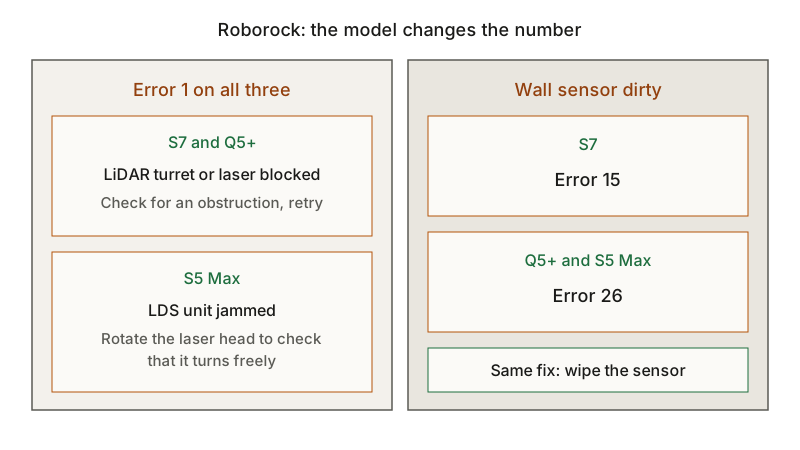
A dirty wall sensor is Error 15 on the S7 and Error 26 on the Q5+ and S5 Max. The fix is the same, wiping the sensor, but the number is not. The generic robot vacuum error codes guide shows how the same number changes meaning across brands.
Extra steps on the S8 MaxV Ultra page
For Error 9, the page says to check for a magnet on the side of the filter and to replace the filter if there is none. For Error 13, it adds checking the dock’s indicator light, reseating the dock cable and unplugging the dock for about two minutes. For Error 18, it says to tap the side of the robot several times to dislodge debris from the fan.
Frequently asked questions
What is Roborock Error 1? A blocked LiDAR turret or laser on the S7 and Q5+, and a jammed LDS unit on the S5 Max. The LiDAR section above gives each model’s steps.
What does Roborock Error 5 mean? The S7, Q5+ and S5 Max manuals all use Error 5 for a jammed main brush and say to clean the main brush and its bearings. The brush guide covers removing and cleaning the brush.
Will a reset erase my Roborock’s settings? Yes. The S7 and S5 Max manuals say a system reset restores cleaning schedules, WiFi and other settings to factory settings.
Not sure which guide fits? Use the symptom checker
Checked against
Models checked: Roborock S7 user manual; Roborock Q5+ user manual (robot Q340RR, Auto-Empty Dock AED03LRR/
- Roborock S7 User Manual (manual; accessed )
- Roborock Q5+ User Manual (manual; accessed )
- Roborock S5 Max User Manual (manual; accessed )
- Roborock Support: S8 MaxV Ultra troubleshooting (support; accessed )
- Roborock Support: S7 Max Ultra troubleshooting (Error 42) (support; accessed )